Create an Agent
Create a new AI agent declaratively through Redpanda Agentic Data Plane. No Python or JavaScript code required. This guide walks through the managed create canvas section by section, then covers how to connect to and test the running agent.
After reading this page, you will be able to:
-
Create a managed Agentic Data Plane agent through the create canvas
-
Configure an LLM provider, model, and tools for an agent
-
Connect to and test a running agent
Prerequisites
-
At least one LLM provider configured in Agentic Data Plane.
-
Optional: One or more MCP servers registered in Agentic Data Plane if you want the agent to call tools.
-
Optional: A system prompt prepared in advance (see System prompt best practices).
Open the create canvas
-
Open Agents in the sidebar.
-
Click Create agent.
-
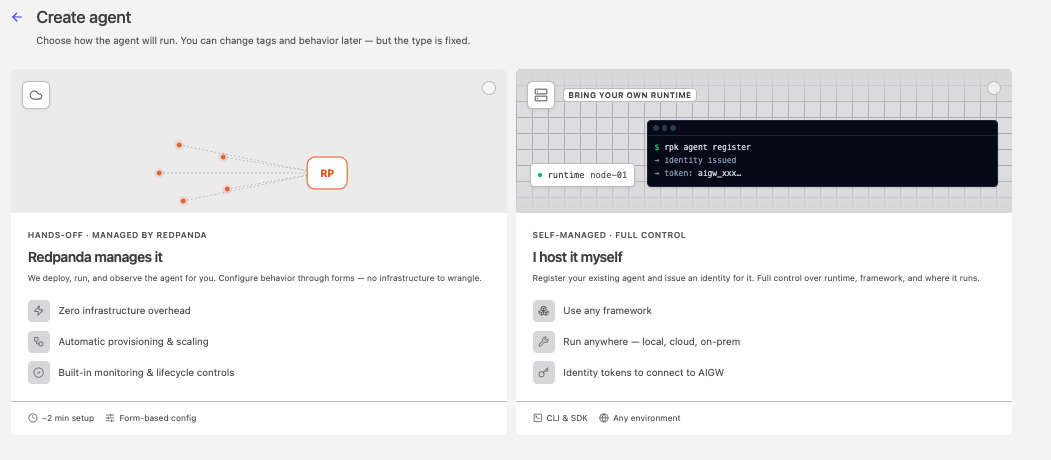
Choose how the agent runs. Click Managed by Redpanda, so Redpanda deploys, runs, and observes the agent for you. (To run an agent you host yourself, see Set Up a Self-Managed Agent.)
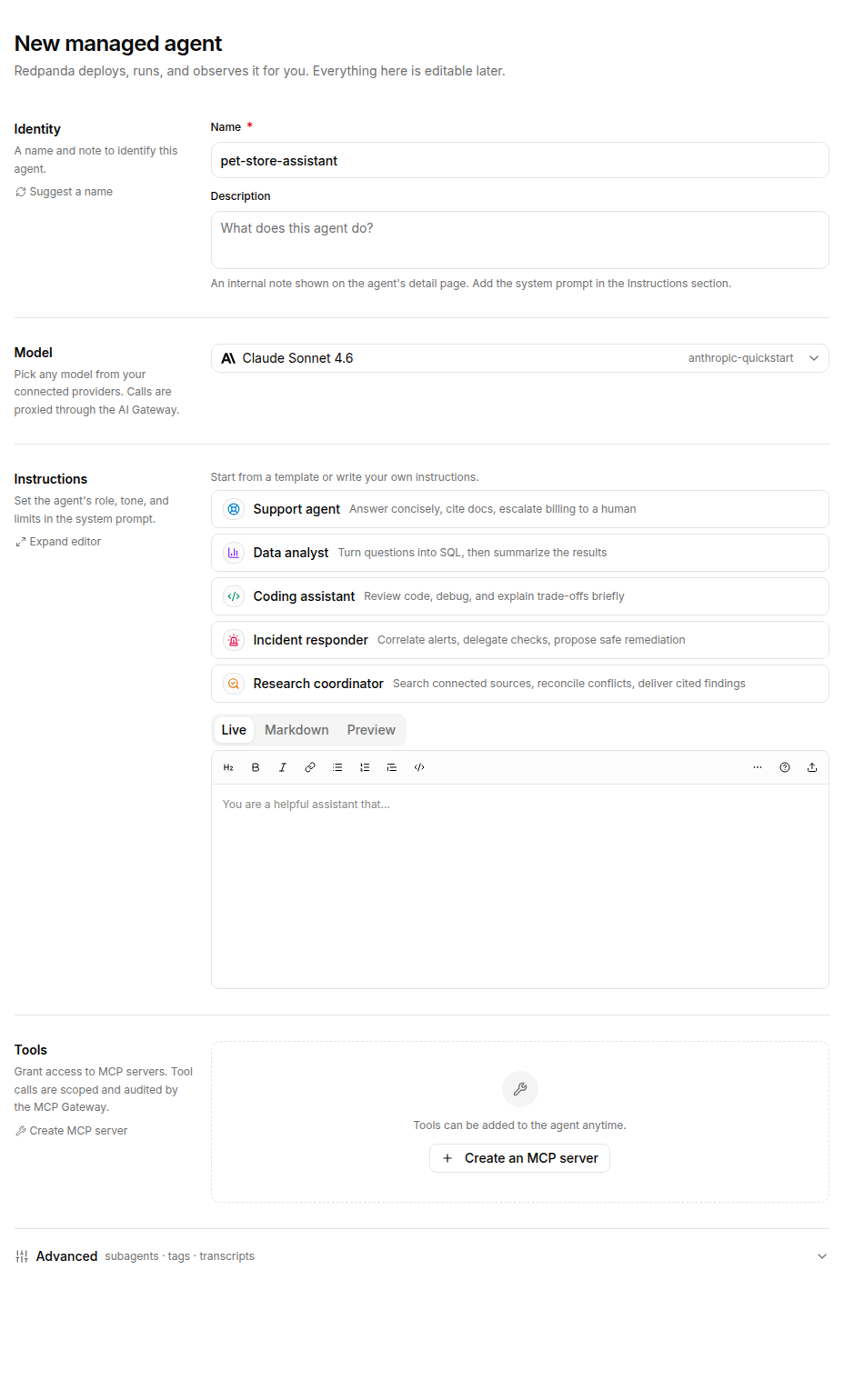
Agentic Data Plane opens the New managed agent canvas: a single page with sections for Identity, Model, Instructions, and Tools, plus a collapsible Advanced area for subagents, tags, and transcript recording. Everything on the canvas is editable later from the agent’s Settings tab.
The canvas starts with a suggested name and the first model your LLM providers serve, so Create agent is available right away. Review both before you create the agent.
Identity
In the Identity section, name the agent and optionally describe it.
-
Replace the suggested Name with your own. Required, up to 128 characters. Shown in the agent registry list and the detail header (for example,
Customer Support Agent). Agentic Data Plane derives the agent’s resource ID from this name when you create the agent. You don’t enter the ID directly. The derived ID is a lowercase slug that starts with a letter, ends with a letter or digit, and can contain letters, digits, and hyphens (up to 63 characters). If another agent already uses that ID, Agentic Data Plane adds a suffix, so check the resource ID on the agent’s Settings tab after you create it. The ID is used in URLs and CLI commands and can’t be changed after creation.Click Suggest a name to swap in a different suggestion. -
Optionally, add a Description of up to 1,024 characters. An internal note shown on the agent’s detail page. This is not the system prompt. Write that under Instructions.
Model
In the Model section, choose the large language model (LLM) the agent uses to interpret user intent and decide which tools to invoke.
The picker is a single searchable list of the models enabled on your LLM providers (for example, us.anthropic.claude-haiku-4-5-20251001-v1:0). Search by name, select a model, and Agentic Data Plane routes to the provider that serves it. When the same model is served by more than one provider, the picker shows the provider next to the model so you can choose which one to use. To use a model the picker doesn’t list, enable it on the provider’s Models tab first. See Configure an LLM provider. Calls to the model are proxied through the AI Gateway.
A model that an upstream provider has retired no longer appears in the provider’s model catalog. An agent that already uses one keeps running on it, and the stored model still resolves if you edit the agent. If a retired model is still enabled on a provider, it stays in the agent’s model picker until you remove it from the provider’s Models tab.
To add a new provider, see Configure an LLM provider. For model selection guidance, see Model selection guide.
For external model specifications and pricing:
|
Max iterations is the upper bound on agent reasoning loops per request. No control sets it in the UI, on the create canvas or on the agent’s Settings tab. Set it with the |
Agentic Data Plane validates the model when you create an agent, and again when you change an agent’s model. For an OpenAI, Anthropic, Google Gemini API, or AWS Bedrock provider, a name the agent runtime can’t resolve is rejected at save time, with an error that points at the offending model field, instead of being accepted and then failing later when the agent deploys. The check accepts what the runtime accepts: an exact model ID, an official alias, or a dated version of a model in the catalog, including a model the provider has retired. It rejects a name that only looks plausible, such as a version bump the provider hasn’t published. An OpenAI-compatible provider has no catalog to check against, so any identifier saves, and the gateway enforces the model on each request instead.
The check covers only the model pairings your edit changes, so an agent that already stores a model outside the catalog stays editable.
For Amazon Bedrock, the check also depends on the provider’s region, so a model that is valid in one region can be rejected on a provider in another. A common mistake is an identifier with no prefix at all, such as claude-opus-4-7. Enter the full inference-profile ID instead, for example us.anthropic.claude-opus-4-7, which Claude 4.6 and later require. To use a model the picker doesn’t list, enable its full inference-profile ID on the provider’s Models tab. For any provider that has a catalog, the identifier must still be one the catalog knows. The same checks apply to each subagent’s model override. See Inference profiles and IAM.
A second check covers models the provider serves but hasn’t turned on: a model that isn’t enabled on the Bedrock provider is rejected at save time too, because the gateway refuses it on every request. Enable the model on the provider’s Models tab, or pick one it already serves. A provider created before model selection was required may still have no models selected; it serves whatever Bedrock accepts, so it rejects nothing here.
For a Claude model on an Amazon Bedrock provider, a managed agent caps the output of a single model call at 16,384 tokens. This cap isn’t configurable, and a response that reaches it stops there, so a long answer can be truncated. The same cap applies to each subagent’s model override. Other Bedrock model families are unaffected.
Instructions
In the Instructions section, write the system prompt that defines the agent’s role, responsibilities, constraints, and output format. The system prompt is optional but strongly recommended; when set, it’s sent on every invocation as the first message. To start from a template, click one of the starter cards above the editor. Each card fills in a complete system prompt that you can then edit.
The field is a Markdown editor with three modes:
-
Live: The default. Styles the formatted Markdown as you type and reveals the raw syntax for the construct you’re editing.
-
Markdown: Always shows the exact source.
-
Preview: Renders the formatted result.
In either editing mode, type the prompt directly and use the formatting toolbar, or click the upload icon to import a Markdown file. To edit in a larger surface, click Expand editor.
On a line of its own, type / to open an insertion menu. Keep typing to narrow the list, use the arrow keys to choose an entry, and press Enter to insert it. Press Escape to dismiss the menu. The menu offers the first three heading levels, a bulleted, numbered, or task list, a quote, a code block, a divider, and a table. It doesn’t open inside a code block or a block of raw HTML, so a slash you write there stays a slash.
A system prompt can hold up to 50,000 bytes of UTF-8 text. That’s 50,000 characters of unaccented Latin text, and fewer when the prompt uses accented, non-Latin, or emoji characters, which take more than one byte each. Agentic Data Plane rejects a longer prompt. On the create canvas, Create agent stays disabled and the hint beside it asks you to shorten the instructions. Each subagent’s instructions carry the same limit, counted separately, so subagents don’t consume the parent agent’s budget.
A typical prompt defines:
-
Agent role and responsibilities
-
Available tools (matches the servers you select in the Tools section)
-
Safety rules and constraints
-
Expected output format
Example structure:
You are an [agent role].

Responsibilities:
- [Task 1]
- [Task 2]

Available tools:
- [tool_name]: [description]

Never:
- [Constraint 1]
- [Constraint 2]

Response format:
- [Format guideline]
For full guidance on writing effective prompts, see System prompt best practices.
Tools
In the Tools section, grant the agent access to the Model Context Protocol (MCP) servers that expose tools to it. This section is optional, and you can change the list at any time after creation.
If your workspace has no MCP servers yet, the section shows a Create an MCP server button instead of the list. Otherwise:
-
Click Add a server and select each server you want the agent to call. A check mark appears next to each one you select. Use the search field above the list to find one quickly. Selected servers appear as rows in the Tools section, where you can remove them.
-
To create a new server instead of attaching an existing one, click Create an MCP server… at the bottom of the list, or click Create MCP server in the Tools section header. Either one opens the server-creation flow in a new tab.
-
To open a granted server’s own page, click its name. An arrow appears beside the name when you point at it or give it keyboard focus, and if the agent has unsaved changes, the unsaved-changes prompt appears first. A name that stays plain text is a grant for a server that is no longer in your server list: it has no page to open, and it keeps its grant until you remove it. The same list, with the same link, appears in the Tools section of the agent’s Settings tab.
-
The agent discovers each selected server’s tools at runtime; you don’t pre-select individual tools. The agent calls them based on the LLM’s interpretation of the system prompt and the user request. Keep the system prompt aligned with the servers you select so the model knows what’s available.
| Apply the principle of least privilege. Connect only the servers the agent needs. |
An agent can reference at most 32 MCP servers in total, counting the servers on the root agent plus every subagent’s servers. The limit counts references, not distinct servers, so a server referenced by both the root agent and a subagent counts twice. If the total exceeds 32, you can’t save the agent.
For registering MCP servers, see Create an MCP server.
Advanced: subagents, tags, and transcripts
Expand the Advanced area to add subagents and tags, and to choose how much of each conversation the agent records. Everything here is optional.
Subagents
Subagents are internal specialists within the same agent. Each subagent has its own name, delegation hint, system prompt, and MCP tools. By default, a subagent inherits the parent agent’s model, and in the UI you can override the model per subagent; the LLM provider is always inherited from the parent. An agent manifest applied with rpk ai apply can also set a per-subagent provider override (llm_provider on the subagent), which requires a model with it. See Manage Resources with GitOps. All subagents share the parent agent’s provider credentials, gateway endpoint, and execution settings. The root agent orchestrates and delegates work to the appropriate subagent based on the request.
An agent can have up to 16 subagents. To add a specialist, click Add subagent (or Add a subagent) and configure it in the panel that opens:
-
Name: Required. Must start with a lowercase letter and contain only lowercase letters, digits, and hyphens, up to 63 characters (for example,
researcher). The name must be unique among the agent’s subagents. -
When should the parent use it?: Required. The delegation hint the parent reads to decide when to route a task to this subagent. Be specific about inputs, outputs, and use cases.
-
Model: Optional. Defaults to the parent agent’s model. A subagent always uses the parent agent’s LLM provider, so you override only the model, choosing from the models that provider serves. Use Reset to inherited to go back to the parent’s model. Opening a subagent that carries a provider override set in a manifest clears that override along with its model, so saving the edit returns the subagent to the parent’s provider and model.
-
Instructions: Required. Domain-specific system prompt for what the subagent does, up to 50,000 bytes. A longer prompt reports an inline error on the field, and the panel doesn’t save until you shorten it.
-
Tools: Optional. Select the MCP servers this subagent can access.
Click Add subagent to save it, or Cancel to discard. To keep the agent flat, leave the list empty.
For multi-agent design patterns, see Agent architecture patterns.
Tags
Add Tags as key/value pairs to organize and filter agents in the registry and to break down cost and usage by team, environment, and more.
Transcript recording
Under Transcripts, choose how much of each conversation the agent records:
-
Full transcripts: The default. Records the agent’s messages, tool arguments, and tool results, along with the conversation timeline, latency, and token usage.
-
Metadata only: Records the conversation timeline, tool names, latency, and token usage only. The agent strips message and tool content, so prompts, responses, and tool inputs and outputs never reach the transcript.
-
Off: The agent records nothing. It exports no conversation traces, and its Transcripts tab stays empty.
This setting alone decides what content the agent’s transcripts hold. The LLM provider’s Record inputs and Record outputs toggles are separate. They control only the message bodies the AI Gateway records on its own trace data, and they don’t change what a transcript shows. See Configure message recording.
The recording mode changes only what a transcript captures; it does not affect cost and usage reporting, which is the same in every mode. Change the mode at any time after creation from the agent’s Settings tab, in the Transcripts section.
Create the agent
-
Review the canvas. Create agent is disabled only when the name is empty, no model is selected, or the instructions exceed the size limit. The helper text next to it tells you what’s missing.
-
Click Create agent.
Agentic Data Plane opens the new agent’s Settings tab.
-
Wait for the Runtime section to show the agent as Running.
A new managed agent has no access policy of its own. If access policies are enabled for your organization, its Permissions tab warns until you author one. Author the agent’s first policy there. See Grant an agent its own permissions.
A managed agent has these tabs:
-
Settings: The agent’s full configuration, as one editable form. See Update a managed agent.
-
Triggers: Schedules and event sources that invoke the agent. See Trigger Agents.
-
Playground: An interactive test surface. See Test your agent.
-
Cost & Usage: The agent’s budget status, plus the requests, share, and cost it routed to each LLM provider over the last 7 days.
-
Transcripts: A record of the agent’s conversations, at the level of detail set by its transcript recording mode.
-
Permissions: The access policies that apply to the agent as a principal. This tab appears when access policies are enabled for your organization. See Manage Access Policies.
Connect to the agent
A running managed agent exposes an A2A endpoint that you can call programmatically or integrate with external systems.
-
A2A endpoint: The URL where the agent receives messages, provisioned after the agent starts. Copy it from the
Endpointfield on the agent’s Settings tab. It is also published in the agent’s card at<agent-url>/.well-known/agent-card.json, and you can fetch it with therpk ai agent a2a cardcommand. -
Authentication: The agent card is public, but every other request to the endpoint requires an access token, sent as an
Authorization: Bearerheader. The caller also needs permission to invoke the agent. See A2A runtime permissions. -
Code examples: Call the agent with an official A2A client SDK (Go, Node.js, Python, and Java), with
curl, or with therpk ai agent a2a sendcommand.
For more about calling agents and integrating them with other systems, see Choose an Integration Pattern.
Update a managed agent
Change a managed agent’s configuration at any time after you create it, either in Agentic Data Plane or with the rpk ai agent update command. You can edit settings such as the model, system prompt, tools, and subagents. The agent ID is fixed and can’t change.
In Agentic Data Plane, the agent’s Settings tab holds the whole configuration as a single form. For a managed agent, its sections are Instructions, Model, Tools, Subagents, Identity, Transcripts, and Runtime, followed by a Delete this agent section. To delete the agent, click Delete in that section and type delete to confirm. A self-managed agent has only Integration and Identity, because its prompt, model, and tools live in your own code.
Edit any number of fields across any number of sections, then save them together. A bar appears at the bottom of the page as soon as something changes, with Discard to drop your edits and Save changes to send them all in one update. Pressing Ctrl+Enter (Cmd+Enter on macOS) also saves. Leaving the tab with unsaved changes prompts you first. Identity also shows values you can’t edit, including the agent’s resource ID, who created it, and when it was created and last updated.
Start and stop the agent from the Runtime section, which also shows its current state and endpoint. Stopping an agent keeps its configuration, transcripts, and cost history, and stops serving callers and triggers until you start it again.
Updates roll out without interrupting the agent. Redpanda starts the new version and waits for it to become ready before it stops the old one, so in-flight and new requests keep reaching a running instance throughout the change.
Test your agent
Two tabs on the agent detail page support testing and observability:
-
Playground: Send test prompts interactively and inspect each step of the agent’s reasoning, tool calls, and responses. Use Playground during development and tuning. The composer shows the agent’s provider, model, and reasoning effort as read-only, so a test run always uses the agent’s saved configuration. Every conversation is saved as a session you can reopen later. See Reopen a past session.
-
Transcripts: Records the agent’s conversations (prompt, tool calls, tool outputs, final response) at the level of detail set by its transcript recording mode. Use transcripts to audit production behavior.
To test the agent in Playground:
-
Open the agent’s Playground tab.
-
Enter a test prompt.
-
Verify the agent:
-
Selects appropriate tools
-
Follows the system prompt’s constraints
-
Returns the expected output format
-
-
Iterate on the system prompt, MCP tool selection, or model choice as needed.
For detailed observability strategies, see Monitor Agent Activity.
Reasoning effort
Reasoning-capable models accept an effort level that trades speed and cost against depth. A managed agent uses the model provider’s own default unless its spec sets an explicit level. The Playground composer shows the agent’s current level, or Provider default, but you can’t change it there.
To set a level, set managed.spec.reasoning.effort in the agent’s manifest and apply it with rpk ai apply. See Manage Resources with GitOps. Use one of the levels the model accepts, exactly as the provider spells them. The levels are the provider’s own strings and match case-sensitively. The older reasoning_effort field is deprecated and still accepted, and Agentic Data Plane keeps the two in step, so a manifest that sets both to different values is rejected.
Each model provider defines its own effort levels, so the levels on offer come from the model rather than from a fixed Redpanda list, and they run from least to most computation. A model that reasons at three levels offers three, and another offers a wider range. Agentic Data Plane rejects an effort that any model the agent uses doesn’t accept, counting the agent’s own model and each subagent’s model override, so a saved agent always carries a level its models support. An explicit effort is also rejected when the agent uses an OpenAI-compatible provider, because those providers expose no configurable reasoning effort. To check whether a model reasons at all, see its detail page (View a model’s detail page).
Changing the agent’s own model from the Settings tab keeps the stored level only if the new model accepts it. If it doesn’t, the level falls back to the provider default and the save goes through, so changing the agent’s model is never blocked by a level the new model doesn’t offer. Switching the agent to an OpenAI-compatible provider always clears the level. Re-apply the manifest if you want a specific level on the new model. A subagent’s model override isn’t adjusted this way. If the model you pick for a subagent doesn’t accept the agent’s level, the save is still rejected.
The level applies to every run, including runs that an A2A client or a trigger starts. Subagents inherit the agent’s level, including a subagent that overrides the model.
Example configurations
Use these configurations as starting points for common agent patterns.
Simple query agent
-
Model: GPT-5 Mini (fast, cost-effective)
-
Tools: Single MCP server exposing a
get_orderstool -
Use case: Customer order lookups
