See What Your Agent Did
Use an agent’s transcripts to read a record of each conversation, turn by turn. Each transcript captures the conversation between the user, the agent, any LLM calls, and any tools it invoked, along with token usage, latency, and any errors.
How much of that a transcript holds depends on the agent’s transcript recording mode: an agent set to record metadata only keeps the conversation’s shape without its content, and an agent with recording off produces no transcripts at all.
For conceptual background on the underlying OpenTelemetry data model, see How Observability Works.
After reading this page, you will be able to:
-
Open a transcript from an agent’s Transcripts tab
-
Read a transcript as a turn-by-turn conversation, including tool calls and token usage
-
Investigate errors and slow turns from the transcript detail view
Prerequisites
-
A running agent with at least one execution.
-
Access to read transcripts. The Admin role grants it, and so does any policy that links a built-in template, from Read only up. Otherwise, an access policy granting the
Transcriptactions does.
|
Transcripts can hold full conversation content, including prompts, model responses, and tool arguments and results. Linking any built-in policy template, even Read only, grants read access to them. Grant transcript access only to people who need it. |
Open an agent’s transcripts
-
Open Agents in the sidebar and select the agent.
-
Open the Transcripts tab.
The tab lists the agent’s recent conversations, one row per conversation.
Read the transcripts list
Each row represents one conversation. Columns include:
-
Conversation: The conversation ID, with the conversation title when one exists. -
User: The end user the conversation ran for, orUnattributedwhen no turn recorded one. See Who a conversation ran for. -
Started: When the conversation began. -
Duration: End-to-end wall-clock time. -
Turns: Number of turns in the conversation. -
Status:Completed,Error, orRunning. -
Tokens: Total tokens across the conversation.
Click the Started, Duration, Turns, or Tokens column header to order the list by that value, newest or largest first. The order applies to the whole list rather than the page on screen, and it’s kept in the page URL, so a sorted view is shareable. The Conversation, User, and Status columns don’t sort.
Filter the list
-
Use the search box to match part of a conversation ID or title. The match ignores case and covers the whole list, not just the page on screen.
-
Use the status dropdown to narrow the list to
Completed,Error, orRunningconversations. -
Use the
Userfilter to narrow the list to one end user. It offers the end users recorded on the page you’re looking at, and takes an identity you type in full for one that isn’t listed. SelectClear user filterto go back to the full list.
The User filter matches exactly. It doesn’t ignore case, and a partial identity matches nothing. It matches a conversation when any of its turns recorded that end user, so a conversation can match on a turn whose user isn’t the one in the User column. Like the search box and the status filter, it’s kept in the page URL.
The User filter isn’t available in every environment. If Status is the only filter beside the search box, your environment doesn’t have it.
The list is paged, with a rows-per-page selector in the footer. Use the page controls to move through older conversations, and use the refresh control to pick up new ones. The page you are on and the rows-per-page setting are kept in the page URL too, so a link to the list reopens the view you shared.
Who a conversation ran for
The User column, the initiator in a transcript’s summary header, and the label on each turn all report the same thing: the end user the agent’s runtime recorded for that turn.
The agent asserts that value, and nothing checks it. Read it as a label the agent chose, not as proof of who acted: an agent can send any string, and the reach of a wrong value stops at its own environment’s transcripts. Access policies, budgets, and cost reporting read the identity derived from the agent’s credential instead. Wherever no value was recorded, a transcript reads Unattributed.
A conversation can involve more than one person, such as an agent answering in a shared channel, so each turn carries its own end user and the summary header reports the first turn that recorded one.
For a managed agent, the runtime records the email address of the caller it authenticated, so the value reflects who called rather than a label the agent picked. When one agent runs on a person’s behalf, it records that person’s address rather than the calling agent’s service account. A run that carries no authenticated email address records nothing, and its turns read Unattributed.
For a self-managed agent, the value is whatever the agent’s own instrumentation sets. See End user attribution.
To read only the conversations one end user took part in, filter the list by user. See Filter the list.
Open a transcript
Click any row to open the conversation detail view. The view has two parts: a summary header and the conversation.
Summary header
The summary header reports:
-
The conversation ID and a status badge (
Completed,Error, orRunning). -
The start time, end-to-end duration, and turn count.
-
The end user recorded for the conversation, taken from the first turn that recorded one, or
Unattributed. See Who a conversation ran for. -
A total-tokens chip.
-
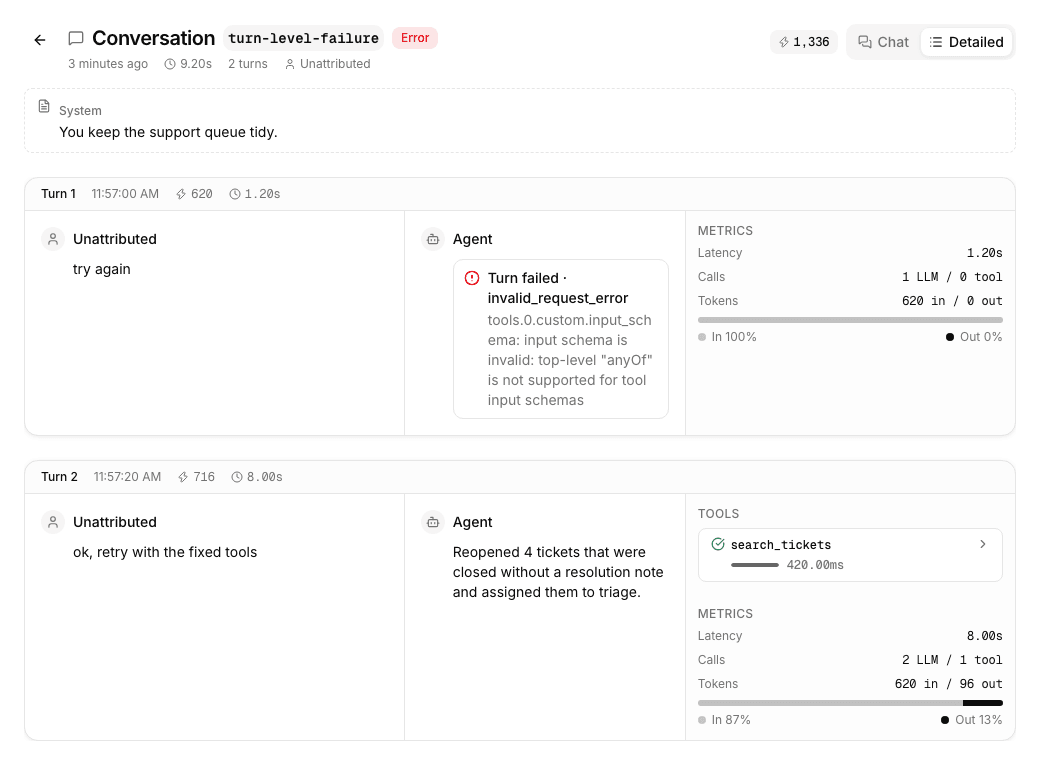
A Chat / Detailed view toggle. Chat shows the user-visible exchange; Detailed adds per-turn metadata such as latency, token counts, context size, and tool calls, and opens each tool call in a dialog showing what was sent and what came back.
If the conversation ended in failure, the status badge reads Error, and the detail is on the turn or tool call that failed. See Errors.
Read the conversation
The conversation is grouped into turns. A turn pairs a user message with the agent’s response and any tool calls the agent made to answer it. When a system prompt was recorded, it appears in its own block at the start of the conversation.
Detailed view shows each turn as a card with the user message, the agent’s response, and a side panel. The side panel lists the turn’s tool calls, each with a status indicator and its duration, followed by the turn’s metrics: its latency, its LLM and tool call counts, its input and output token totals, and its context size. See Context size of a turn. The LLM call count is the number of calls the agent made to the model to finish that turn, which is often more than one. Tool calls are counted separately. The user side of the card is labeled with that turn’s end user, so a conversation with several senders attributes each turn to its own. See Who a conversation ran for.
A turn’s response carries the text from every one of those model calls, in the order the agent produced them, one paragraph per message. An agent that says what it is about to do, calls a tool, and then answers shows both messages in the turn rather than the final answer alone. A message that repeats the one before it appears once. A turn already recorded isn’t rewritten unless its conversation records more activity, so a conversation that finished earlier can still show only the last message of each turn.
The three columns are resizable. Drag either divider in a turn card, or focus a divider and use the arrow keys, to widen the column you are reading. The change applies to every turn in the conversation at once, and the browser you are working in remembers the widths for your next visit. Each column keeps a minimum width, and on a narrow screen the columns scroll sideways rather than being cut off.
Click a tool call to open it in a Tool call dialog and read the exact call: its status, how long it took, the Arguments the agent sent, and the Result it got back, both as JSON. A call that failed also shows an Error section with the error code and message the call returned.
A tool call that ran but returned an error shows the Error status, not Completed. Conversations recorded earlier keep the status they were stored with, so an older transcript can still show such a call as Completed. The dialog opens for every tool call, and names each piece the transcript didn’t record rather than hiding it. What the transcript holds depends on the agent’s recording mode: an agent set to Metadata only strips tool content, so its tool calls keep their name, status, and duration, and the dialog reports the arguments and result as not recorded. See Transcript recording.
Chat view reads the turns as a message thread between the user and the agent, with each turn’s tool calls shown as labeled indicators above the agent’s response. The first message in each user block is labeled with the end user whose turn it was, or User when the turn recorded none, and a change of sender starts a new block, so a conversation that several people took part in shows who said what. See Who a conversation ran for.
Each tool call is labeled with the name the model called. For a tool served by an MCP server, that name includes the server it came from, such as servicenow__lookup_user.
Delegations to a subagent
When an agent hands work to a subagent, the turn’s tool list gives the delegation its own row rather than showing it as an ordinary tool call. The row carries the subagent’s name, a Delegated badge, how long the delegation took, and the tokens the delegated turn used, split into input and output.
Click the row to open the delegated turn: its model, latency, call counts, and tokens, the message it received, the response it returned with its own failure notice when it failed, and its own tool calls, which you can expand. The Arguments and Result of the delegating call are collapsed under the turn when the transcript recorded them. A delegated turn that hasn’t reached the transcript yet says so in place of the turn.
A delegation is recorded from the subagent’s own execution, not from the tool’s name, so a tool that merely looks like a delegation stays an ordinary tool call. An older conversation, recorded before transcripts kept that link, shows its delegations as ordinary tool calls.
Context size of a turn
In Detailed view, each turn card shows a context chip beside the turn’s latency, reporting how much of the model’s context window the turn filled. Click the chip for the exact figure: the tokens the prompt used, the window they were measured against, and the share of the window they took. The turn’s metrics repeat the same figure as a Context row.
A turn’s context size is the prompt the model read on the turn’s last call, including anything served from the provider’s prompt cache. It is not the turn’s input token total, which adds up every call the agent made to finish the turn and is what the turn costs. A turn that took several calls therefore reports a context size smaller than its input total, and the two are answering different questions: context size tells you how close the turn came to the window, and the input total tells you what it spent. For spend, open Cost and usage. See Analyze Cost and Usage.
Redpanda reads the window from the model catalogs of the OpenAI, Anthropic, Google Gemini API, and AWS Bedrock provider types. A model none of those catalogs lists, for example one served through an OpenAI-compatible endpoint, has no known window, so the chip reports the context size on its own and says the window is unknown for that model. A turn whose model steps recorded no token usage, and any turn recorded before Agentic Data Plane began storing context size, shows no chip and no Context row.
Use the context size next to the compaction markers in the same conversation: a turn running close to its window is the one whose next step is likely to compact. See Context compaction.
Context compaction
When an agent reduces its own context to stay inside the model’s window, the conversation shows a Context compacted marker at that point in Detailed view, with the estimated request size before and after the pass. A long conversation can hold several markers, and a single turn can hold more than one, because the agent compacts either when its own estimate nears the limit before a step, or after the provider rejects a request as too large. Hover over the marker to see which pass ran. See Context window limits.
Expand a marker to see what the pass removed:
-
How many whole messages it dropped, and how many tool results it replaced with short markers. A pass that removed neither says so.
-
The size before and after the pass, split across the categories that make up a request:
System prompt,Tool definitions,Text,Reasoning,Tool calls,Tool results, andFraming. Each category shows its own before and after totals, so you can see which part of the history the pass reclaimed. A category that is empty on both sides is left out.
These sizes are the agent’s own estimates of how many tokens it was about to send, not billed usage, so they don’t match the turn’s token totals. Use them to understand what the agent dropped, and Cost and usage for spend. A marker appears only for an agent that records compaction, so a conversation with no markers either never compacted or runs an agent that doesn’t report it.
Errors
A conversation that ended in failure shows an Error status badge in the summary header. The failure detail is on the turn or tool call that failed, not in a conversation-level notice.
A turn that failed carries its own Turn failed notice, under the agent’s response in Detailed view and in the agent’s message in Chat view. The notice names the failure’s error code when one was recorded, and shows the message the failure returned, or says the turn failed without error details when the failure recorded no message. A turn that failed before producing a response or a tool call still appears, with the notice in place of the response.
A tool call that failed shows an error status indicator on that tool call in its turn. Click the tool call to read the error it returned.
Common investigation tasks
These workflows cover the most frequent reasons to open a transcript.
Debug errors
-
Set the status dropdown to
Error. -
Open the failing transcript and find the turn carrying a Turn failed notice, or the tool call marked with an error status. Read the error message it shows.
-
Read that turn’s user message and agent response for the context the failure happened in.
Investigate performance issues
-
Click the
Durationcolumn header to bring the slowest conversations to the top. -
Open a slow transcript, switch to the Detailed view, and scan the per-turn latency to find the bottleneck turn.
-
For tool-bound bottlenecks, compare the durations of the turn’s tool calls in the side panel to find the slow call.
Find the step that owns the time
The Detailed view reports a turn’s total latency and the duration of each tool call, but not the duration of each model call. Read a slow turn from its leaves up instead. Subtract the tool time, and what remains belongs to the model.
Suppose a conversation near the top of the Duration sort opens to a single turn whose metrics read 6.65 seconds of latency, 2 LLM calls, and 1 tool call, and whose side panel lists one tool call, get_quote, at 0.4 seconds.
-
The tool call took 0.4 seconds, so the tool isn’t the bottleneck.
-
The remaining time, about 6.2 seconds, belongs to the two model calls: one before the tool call, to decide to make it, and one after, to compose the answer.
-
The model owns the time. The fixes are on the model side: a lower-latency model tier for this agent, a shorter system prompt or conversation history, or fewer iterations. See Slow response times and Why iterations matter.
If the side panel had instead shown get_quote at 5 seconds, the tool would own the time, and the fix would be on the tool’s side: the system behind it, its query, or its timeout. A tool call that failed shows an error status indicator in the same panel, so a slow call and a failed call read the same way.
The same run as raw spans, with a duration on every span, is the hierarchy in Typical agent execution flow.
Analyze tool usage
Open a transcript in the Detailed view to read each turn’s tool calls in its side panel, with the tool name, a status indicator, and the call’s duration. Expand a call to see the arguments it was given and the result it returned. Each tool call is grouped with the turn whose response it produced, including tool calls that do not go through an MCP server, such as an agent delegating to a subagent.
Monitor LLM interactions and cost
The transcript shows token usage per turn. For spend analysis across agents, models, and users, open Cost and usage in the sidebar (see Analyze Cost and Usage), or use breakdown queries through SpendingService.
Limitations
-
The list loads in pages from most recent backward. If the conversation you need is old, use the page controls to reach older pages, or search for its conversation ID.
Troubleshooting
Symptoms you might hit in the transcript list, and what they mean.
Transcript stuck in Running
A transcript shows Running while any of its turns is unfinished. Common causes:
-
The agent or MCP server is still executing (this is normal: Wait, or open a newer transcript).
-
The root span never flushed because the process was killed mid-execution. Expect this to resolve after the OTLP ingestion lag clears; if it doesn’t after several minutes, the trace is likely orphaned.
Turns are missing token counts, latency, or tool detail
For a self-managed agent, a transcript shows only what the agent’s own instrumentation exports, and some frameworks don’t emit model steps, token counts, or tool arguments as attributes a transcript can read. See Framework caveats and Message content capture. For a managed agent set to Metadata only, tool calls keep their name, status, and duration but not their arguments and results. See Transcript recording.
Transcript missing entirely
Opening a conversation that has no stored transcript reports No transcript found, with the note that no recorded transcript is available for this conversation. The state offers Try again, and Error details for the underlying response. On an agent’s Transcripts tab, the back arrow (Back to transcripts) above it returns to the conversation list. It is a warning rather than an error, because a conversation can legitimately have no transcript: the agent’s recording mode may have been off when it ran, the conversation may still be assembling, or its retention window may have passed. A request that fails for any other reason reports Transcript unavailable instead, with the error the call returned. You can reach this state from a link into a specific conversation, such as the Transcript link on a schedule trigger’s run. See Run an Agent on a Schedule.
To work out why a transcript is missing:
-
Confirm the agent or MCP server actually ran: Check its logs and the corresponding session or task topic.
-
For a self-managed agent, confirm the agent is exporting spans and they pass validation: Check the validation log at the bottom of the agent’s Setup tab, then the exporter-side checks in Validate ingestion. An export authorized with a token that isn’t the agent’s own credential is rejected without appearing in that agent’s validation log.
-
Confirm your user can read transcripts. Outside the Admin role, transcript reads come from a built-in policy template (Read only or higher) or an access policy naming the
Transcriptactions. Check the Access page for a policy that covers your user or one of its groups, and for aforbidthat overrides it. See Transcript permissions.
