Shape Tool Data with Data Policies
Data policies shape the data an MCP server exposes. Use them to mask, drop, or hash sensitive fields in the results a tool returns, restrict the argument values a caller can send, and filter elements out of list results, all before the model sees the data. Sensitive data stays protected without turning tools off.
After reading this page, you will be able to:
-
Create a data policy that masks, drops, or filters the data a tool returns
-
Restrict the argument values that callers can send to a tool
-
Preview the composed effect of a server’s data policies before saving
How data policies work
A data policy belongs to one MCP server. It binds a set of transforms to the tools they shape and the people they apply to:
-
Tools: The tools on this server the policy shapes. An empty list means every tool.
-
Principals: Who the policy applies to, as
User:<email>entries. An empty list means every caller. -
Transforms: What the policy does to tool-call arguments on the way to the server and to results on the way back.
Data policies complement permissions. Permissions decide whether a caller can invoke a tool. A server’s data policies decide what the data looks like for the callers they match. See Control Who Can Do What.
The AI Gateway enforces data policies on live traffic in both directions. A server can carry several data policies, and every policy that matches a call applies. Policies compose most-restrictively: adding a policy can only narrow what a caller sees, never widen it.
Data policies fail closed. If a rule cannot be enforced, matching calls are denied rather than served unshaped data.
The audit log records what a data policy did to each call. A call that a data policy denied reads Denied, and a call whose data it masked, dropped, or filtered reads Masked. The event’s Policies section lists each data policy that matched the call with a Blocked, Masked, or Passed result and links back to the server’s Data Policies tab.
Prerequisites
You need an MCP server with discovered tools. To create one, see Create an MCP Server.
Open the Data Policies tab
-
Open MCP servers in the sidebar.
-
Click a server.
-
Click the Data Policies tab.
The Tools list shows every tool the server exposes. A colored dot marks each tool’s status: green when at least one data policy shapes it, yellow when no policy applies and some field names look potentially sensitive, and gray when no policy applies and no sensitive fields were detected. A legend at the bottom of the list counts the tools in each status.
When a server exposes many tools, use the Filter tools box to narrow the list by tool name, title, or description. The count next to Tools shows how many tools match.
Create a data policy
-
In the Tools list, click the tool you want to shape.
-
Click + (New policy) to start a new policy. The policy gets a suggested name, which you can edit.
-
On the Configuration tab, choose a treatment for each request or response field:
-
Keep: Preserve the field. In allowlist mode, only kept fields survive.
-
Mask: Replace the field’s value but keep the field present. Choose one of the mask methods.
-
Drop: Remove the field entirely.
-
-
Save the policy.
A new policy applies only to the tool you created it from. See Target tools and people.
You can also edit the policy’s request and response rules as YAML. The form and the YAML editor are two views of the same draft, so you can switch between them at any time.
Mask methods
| Method | What it does |
|---|---|
Redact |
Replaces the value with a fixed placeholder. The default placeholder is |
Partial |
Keeps the first or last characters and masks the rest. For example, keeping the last four characters turns |
Hash |
Replaces the value with a SHA-256 digest. Equal inputs produce equal digests, so values stay correlatable without exposing the plaintext. Salted hashing isn’t supported yet, and a hash rule that references a salt is rejected when you save it. |
Pattern |
Rewrites the value with an RE2 regular-expression substitution. The replacement text can reference capture groups, such as |
Select fields
A rule selects fields with a JSONPath expression, such as $.user.email (you can omit the leading $.). To match a field wherever it appears, use a descendant selector such as $..ssn with mask and drop rules. Wildcard, index, and filter expressions are not supported: you can’t save a policy that uses them.
For list results, selectors evaluate against each record. For single-object results, they evaluate against the whole payload.
A rule is either strict or absence-safe. A strict mask or drop rule whose selector matches nothing denies the call. This protects you when an upstream API renames a field, because the renamed field fails the call instead of silently leaking. An absence-safe rule accepts a missing field. Rules you create in the form are absence-safe by default, because the field came from the tool’s schema and a payload may legitimately omit it. Rules written in the YAML editor or passed with --data-policies on rpk ai mcp-server create or update are strict unless you mark them absence-safe. A rule with a descendant selector must be absence-safe.
Restrict argument values
A policy can tighten the allowed values of a tool-call argument. The AI Gateway rejects a call whose argument falls outside the limits, with an error that names the violated argument.
Address the argument with a JSONPath into the tool’s arguments, such as $.query.limit, then apply any of these limits:
| Limit | Applies to |
|---|---|
Minimum and maximum value |
Numbers |
Minimum and maximum length |
Strings |
Pattern (RE2 regular expression) |
Strings |
Format, such as |
Strings |
Allowed values |
Strings |
Minimum and maximum item count |
Arrays |
The gateway also merges these limits into the input schema the tool advertises, so agents see the tightened contract up front instead of discovering it through failed calls.
Filter elements out of results
A row filter drops whole elements from a list-shaped result. It names the array and the condition an element must satisfy to survive:
-
Path: Where the array is in the result, such as
$.bodyfor an OpenAPI server’s response envelope,$.resultfor a ServiceNow-style wrapper, or$when the result is a bare array. If the path is absent or not an array, the filter does nothing. -
Condition: A comparison against a literal value. Compare a field of each record, such as
@.priority >= 8, or compare each element itself when the array holds plain values instead of records, such as@ != "restricted". Supported operators are==,!=,<,<=,>, and>=. The literal can be a string, number, boolean, or null, but<,<=,>, and>=accept only a string or number.
A condition is an allowlist. An element the condition can’t evaluate never survives:
-
A record that doesn’t have the compared field.
-
A record or a nested array, when the condition compares elements themselves.
-
A plain value, when the condition compares a field.
Conditions on the same array combine across rules and policies, so an element must satisfy all of them.
The visual builder compares a field of a record. When the array holds plain values, clicking Filter opens an expression box directly, because there are no fields to choose from. For an array of records, click Advanced to type an expression instead. You can also edit the policy as YAML.
Target tools and people
By default, a saved policy applies to the tool you created it from. The Configuration tab shows the policy’s tools read-only and lets you edit who it applies to:
-
Tools: The tools the policy shapes. To shape more tools, or every tool on the server, set the policy’s
toolslist withrpk ai mcp-server update <server-name> --data-policies. The flag replaces the server’s whole list of data policies, so pass every policy the server should keep. An emptytoolslist shapes every tool. -
Principals: The people the policy applies to, as
User:<email>entries with the caller’s full email address, for exampleUser:alice@example.com. Clear the list to apply the policy to every caller.
Preview the effect
Before you save, check what a policy actually does:
-
The Configuration tab shows the composed effect for the selected tool across all of the server’s policies, including your unsaved edits, with each field’s winning treatment and which policy contributed it.
-
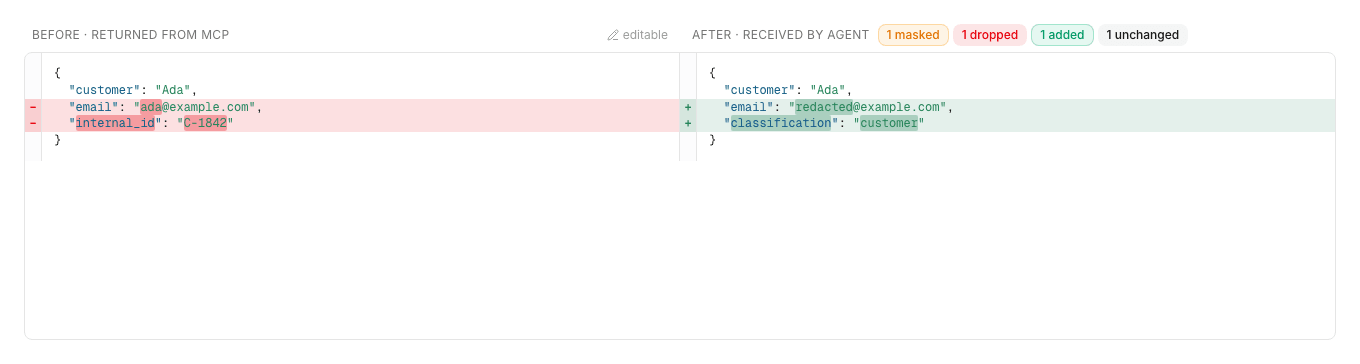
The Preview tab compares sample data before and after the current rules run, in two side-by-side views: the request the agent sends against the request the MCP server receives, and the result the server returns against the result the agent receives. Both views run through the same code that shapes live traffic.
Each comparison seeds its sample from the tool’s own schema, and the Before side of either view is editable, so you can check a specific value. Agentic Data Plane re-runs the comparison as you edit, with no button to click, and counts the effects beside the After side: how many fields it masked, dropped, or added, how many rows a filter removed, and how many fields came through unchanged. While you have staged rules that aren’t saved yet, the comparison includes them and says so.
If matching calls would be denied, a banner explains why, for example an unenforceable rule or a strict selector that matches nothing.
Limitations
Data policies are a preview capability with these limitations:
-
A mask hides a field’s value, not which records hold it. On a server that exposes SQL tables, a caller who can run
execute_querycan filter on a masked column that the table also declares filterable, and whether any rows come back tells them whether the value they filtered for is there. Treat a mask as value-hiding only, and withholdexecute_queryfrom a caller who must not learn which records exist. To withhold it, use an access policy that denies theMcpServerTool.callaction on that one tool. -
Principals accept individual users only. Group-based targeting is not supported.
-
Field selectors support named paths and descendant selectors only. Wildcard, index, and filter expressions are rejected.
-
On a self-managed server that uses the legacy Server-Sent Events (SSE) transport, results stream past response shaping. Calls that match a policy with response rules are denied on those servers. Request rules still work.
-
If your gateway does not enforce data policies, the tool header shows a Not enforced here badge: rules save but don’t apply to live traffic.
To read a server’s data policies, get the individual server, for example with rpk ai mcp-server get <server-name> -o yaml. List responses omit data policies to keep payloads small.
