Understand Agent Concepts
When you configure an agent’s LLM, system prompt, and tools, Redpanda Agentic Data Plane manages execution through a reasoning loop: analyze context, invoke a tool, process the result, and repeat until the task completes. Each iteration adds tokens to the context window and runs against your iteration budget, so execution decisions directly shape cost, latency, and reliability. Understanding this model gives you the foundation to set effective iteration limits, design lean tool sets, and diagnose failures before they affect your users.
After reading this page, you will be able to:
-
Explain how agents execute reasoning loops and make tool invocation decisions
-
Describe how agents manage context within a conversation
-
Identify how agents handle tool errors and terminal failures
Agent execution model
Every agent request follows a reasoning loop. The agent doesn’t plan every tool call up front. Instead, it makes decisions iteratively, one turn at a time.
The reasoning loop
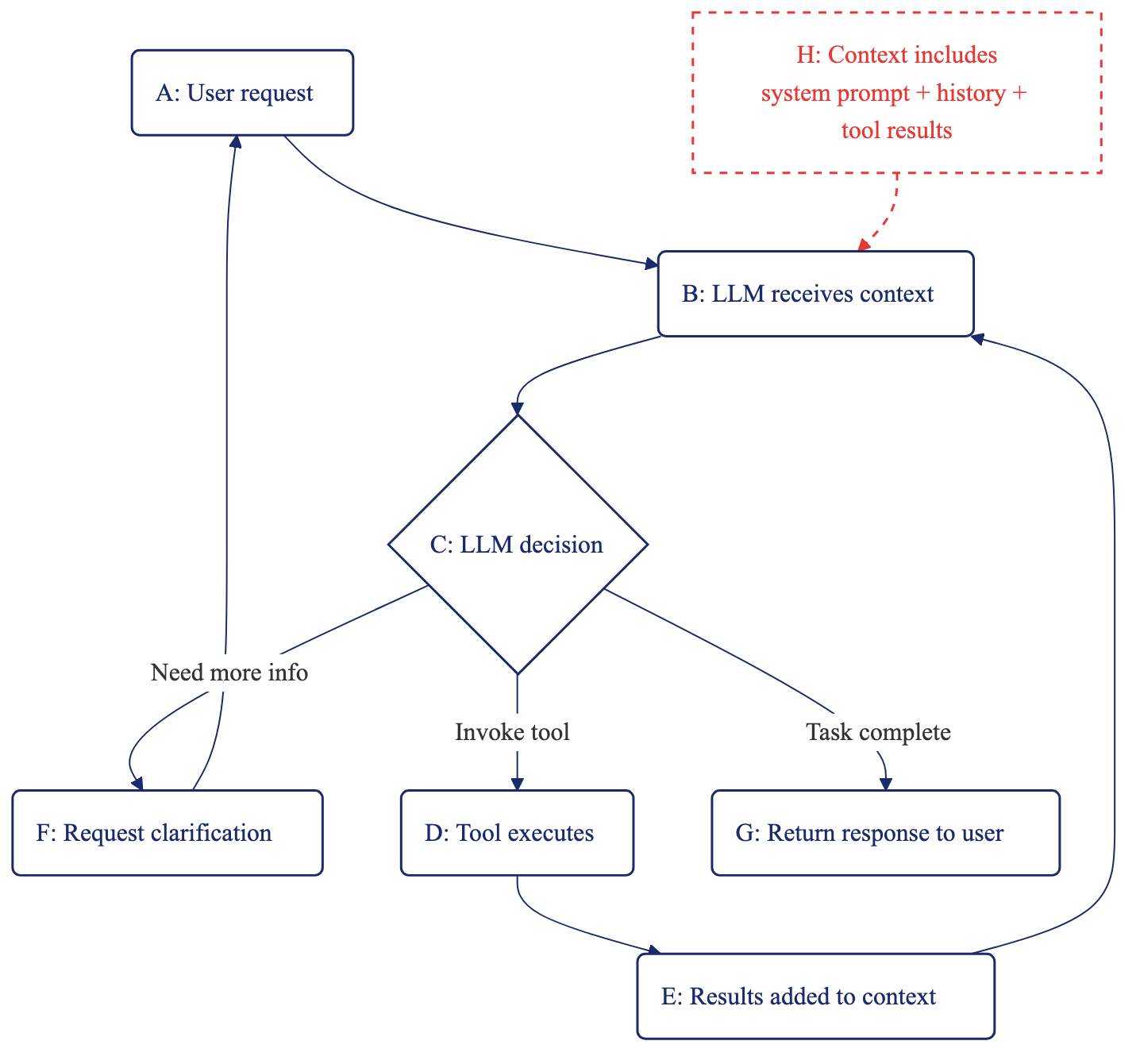
The following diagram shows how agents process requests through iterative reasoning:
When an agent receives a request:
-
The LLM receives the context, including system prompt, conversation history, user request, and previous tool results.
-
The LLM invokes a tool, asks for more information, or responds to the user.
-
The tool runs and returns results if invoked.
-
The tool’s results are added to conversation history.
-
The LLM reasons again with an expanded context.
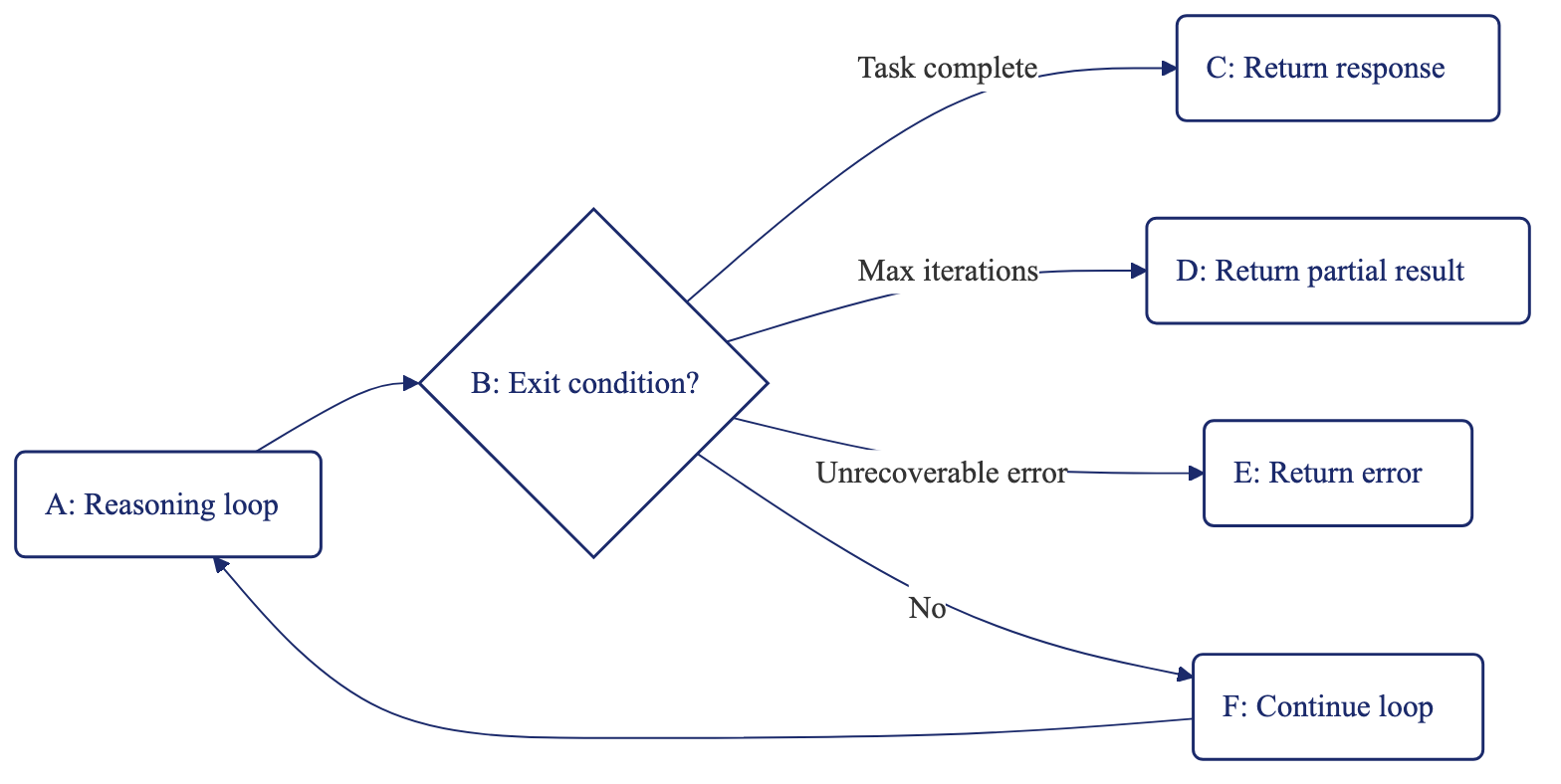
The loop continues until one of these conditions is met:
-
Agent completes the task and responds to the user
-
Agent reaches its max iterations limit
-
Agent encounters an unrecoverable error
When an agent reaches its max iterations limit, it stops without a final answer. An A2A caller sees the task end in a failed state with the message Agent stopped: maximum iterations reached. If that happens on legitimate requests, raise the limit or narrow the task.
A tool that fails doesn’t end the loop. The agent returns the tool’s error to the model as that call’s result, so the model can retry, pick another tool, or explain the problem. A subagent that the agent delegates to counts as a tool, and a subagent call that runs longer than 10 minutes fails the same way. Failures outside a tool, such as an LLM API call that fails because of an authentication or connection error, are unrecoverable, and the agent returns an error immediately.
Why iterations matter
Each iteration includes these phases:
-
LLM reasoning: The model processes the growing context to decide the next action.
-
Tool invocation: If the agent decides to call a tool, execution happens and waits for results.
-
Context expansion: Tool results are added to the conversation history for the next iteration.
With higher iteration limits, agents can complete complex tasks but can cost more and take longer.
With lower iteration limits, agents can respond faster and are cheaper but may fail on complex requests.
Cost calculation
Each iteration resends the growing context to the model, so input cost is roughly the sum of the context sizes across every iteration. Estimate it from the average context size:
Input cost per request ≈ iterations x average context tokens x input price per token
Output tokens are priced separately, usually at a higher rate, so add them on top.
The following example is illustrative only. It assumes 30 iterations whose context grows from about 500 tokens to about 4,000, averaging about 2,000 tokens, at an input price of $0.000002 per token:
Iteration 1:   500 tokens x $0.000002 = $0.001
Iteration 15: 2000 tokens x $0.000002 = $0.004
Iteration 30: 4000 tokens x $0.000002 = $0.008

Input total:  30 iterations x ~2000 tokens x $0.000002 ≈ $0.12 per request
Actual costs vary based on:
-
Tool result sizes (large results increase context)
-
Model pricing (varies by provider and model tier)
-
Task complexity (determines iteration count)
Setting max iterations creates a cost/capability trade-off:
| Limit | Range | Use Case | Cost |
|---|---|---|---|
Low |
10-20 |
Simple queries, single tool calls |
Cost-effective |
Medium |
20-40 |
Multi-step workflows, tool chaining |
Balanced |
High |
40-100 |
Complex analysis, exploratory tasks |
Higher |
Iteration limits prevent runaway costs when agents encounter complex or ambiguous requests. For the default, the ceiling, and how to set the value, see Max iterations.
MCP tool invocation patterns
MCP tools extend agent capabilities beyond text generation. Understanding when and how tools execute helps you design effective tool sets.
Synchronous tool execution
In Redpanda Agentic Data Plane, tool calls block the agent. When the agent decides to invoke a tool, it pauses and waits while the tool executes (querying a database, calling an API, or processing data). When the tool returns its result, the agent resumes reasoning.
This synchronous model means latency adds up across turns, and long-running tools can delay or fail agent requests due to timeouts. When the model requests several tools in the same turn, the agent runs them in parallel, up to three at a time, and waits for all of them before the model reasons again. Calls that depend on an earlier result run in later turns.
Tool selection decisions
The LLM decides which tool to invoke based on system prompt guidance (such as "Use get_orders when customer asks about history"), tool descriptions from the MCP schema that define parameters and purpose, and conversation context where previous tool results influence the next tool choice. Agents can invoke the same tool multiple times with different parameters if the task requires it.
Tool chaining
Agents chain tools when one tool’s output feeds another tool’s input. For example, an agent might first call get_customer_info(customer_id) to retrieve details, then use that data to call get_order_history(customer_email).
Tool chaining requires sufficient max iterations. Each dependent step waits for the previous result, so it consumes its own iteration. Independent calls that the model requests in the same turn share one iteration.
Tool granularity considerations
Tool design affects agent behavior. Coarse-grained tools that do many things result in fewer tool calls but less flexibility and more complex implementation. Fine-grained tools that each do one thing require more tool calls but offer higher composability and simpler implementation.
Choose granularity based on how often you’ll reuse tool logic across workflows, whether intermediate results help with debugging, and how much control you want over tool invocation order.
For tool design guidance, see How MCP Servers Work.
Context management
An agent’s context lasts for one conversation, identified by its A2A context. The agent has no built-in memory that carries across conversations. To give an agent information from earlier conversations, expose it through a tool, such as an MCP server that reads from your own data store.
Conversation context
The agent’s context includes the system prompt (always present), user messages, agent responses, tool invocation requests, and tool results.
As the conversation progresses, context grows. Each tool result adds tokens to the context window, which the LLM uses for reasoning in subsequent iterations.
Context window limits
LLM context windows limit how much history fits. Small models support 8K-32K tokens, medium models support 32K-128K tokens, and large models support 128K-1M+ tokens.
A managed agent reduces its own context to stay inside the model’s window, so a long conversation keeps running instead of failing once its history no longer fits. As the next request approaches the limit, the agent replaces tool results it has already read with short markers, then drops the oldest turns if the request is still too large. Tool results the agent hasn’t read yet stay intact, so the agent never discards a result before the model acts on it. The same reduction applies to the agent and to each of its subagents, and it follows fixed rules rather than asking the model to summarize, so the same history always reduces the same way.
Reducing context isn’t free. The agent loses access to early conversation details, and it may ask for information it already retrieved. Design workflows to complete within context limits, and avoid unbounded tool chaining.
An agent’s transcripts mark each reduction and report what it removed, so you can tell whether a lost detail was dropped from the context. See Context compaction.
Service account authorization
When you create an AI agent, Agentic Data Plane provisions a service account for it automatically. The service account is the agent’s own identity. You don’t create it, and you don’t manage it separately from the agent.
-
Client ID: Derived from the agent’s name, in the form
serviceaccounts/<agent-name>. The principal is<agent-name>@iam.serviceaccounts.<dns-zone>, where<dns-zone>is your environment’s DNS zone. For example, an agent namedmy-agentgets the client IDserviceaccounts/my-agent. -
Authorized scope: The credentials authenticate the agent’s LLM and MCP tool calls through AI Gateway, and they attribute spend, tokens, latency, and traces back to the agent. They also give you a single point of revocation, because revoking a leaked client secret ends the agent’s access with it.
Use these credentials only inside the agent they belong to. A caller that invokes the agent from outside authenticates as its own principal, not as the agent.
What the agent may do in Agentic Data Plane comes from access policies, not from the service account itself. For an agent, author those on its Permissions tab, which locks the principal to the agent. A policy that names the service-account principal instead grants the agent nothing, because Agentic Data Plane evaluates the agent’s own requests as the agent. For the permission names behind each action, see Roles and Permissions Reference.
Manage agent credentials
On a self-managed agent, pair the client ID with a client secret to obtain access tokens. Manage secrets on the agent’s Credentials tab, or with the rpk ai agent credential commands.
To issue a secret, click Create secret and optionally name it. Copy the secret before you dismiss the dialog, because it’s shown once and can’t be retrieved again.
Each secret in the list shows:
| Column | Description |
|---|---|
Name |
The label you gave the secret when you created it. |
Created |
When the secret was issued. |
Expires |
When the secret stops being accepted. A secret created on this tab expires 90 days after creation. That is the default, not a fixed limit. To set a different lifetime, create the secret with |
More than one secret can be active at a time, so you can roll credentials over without downtime: create the new secret, deploy it, then revoke the old one. To revoke a secret, click Revoke on its row. An agent can have up to 10 unexpired secrets at a time. Expired secrets do not count toward that cap.
|
Revoking a secret immediately breaks anything still using it. The agent’s service account and client ID stay in place, and only that secret stops working. |
