Test an MCP Server’s Tools with the Inspector
Verify that your MCP server’s tools, resources, and prompts work correctly before agents depend on them. The Inspector runs on the same JSON-RPC connection agents use, so a passing test means fewer failed tool calls in production. Use the Inspector after creating a server or whenever you change a tool’s schema.
After completing this guide, you will be able to:
-
Run an MCP tool from the Inspector, directly or through a model, and read its response
-
Inspect a server’s resources, prompts, and session activity
-
Diagnose common errors (missing authentication, scope upgrade required, transport mismatch) before pointing an agent at the server
When to use the Inspector
-
After creating or registering a server, to confirm tool discovery completed and tools run correctly.
-
While iterating on a self-managed server, to test schema changes against a live connection.
-
When debugging an agent failure, to isolate whether the issue is in the agent or in the MCP server itself.
A tool call that succeeds in the Inspector settles three questions together. The server’s tool definitions loaded, so discovery worked. The gateway reached the system behind the tool, so the network path works, and the system accepted the credentials the server uses. When a call fails, the error tells you which of the three broke: a transport or connection error is the path, an OAuth or credential error is the credentials, and an input validation error is the schema. See Common errors.
Open the Inspector
-
Open MCP servers in the sidebar and click your server.
-
Click the Inspector tab.
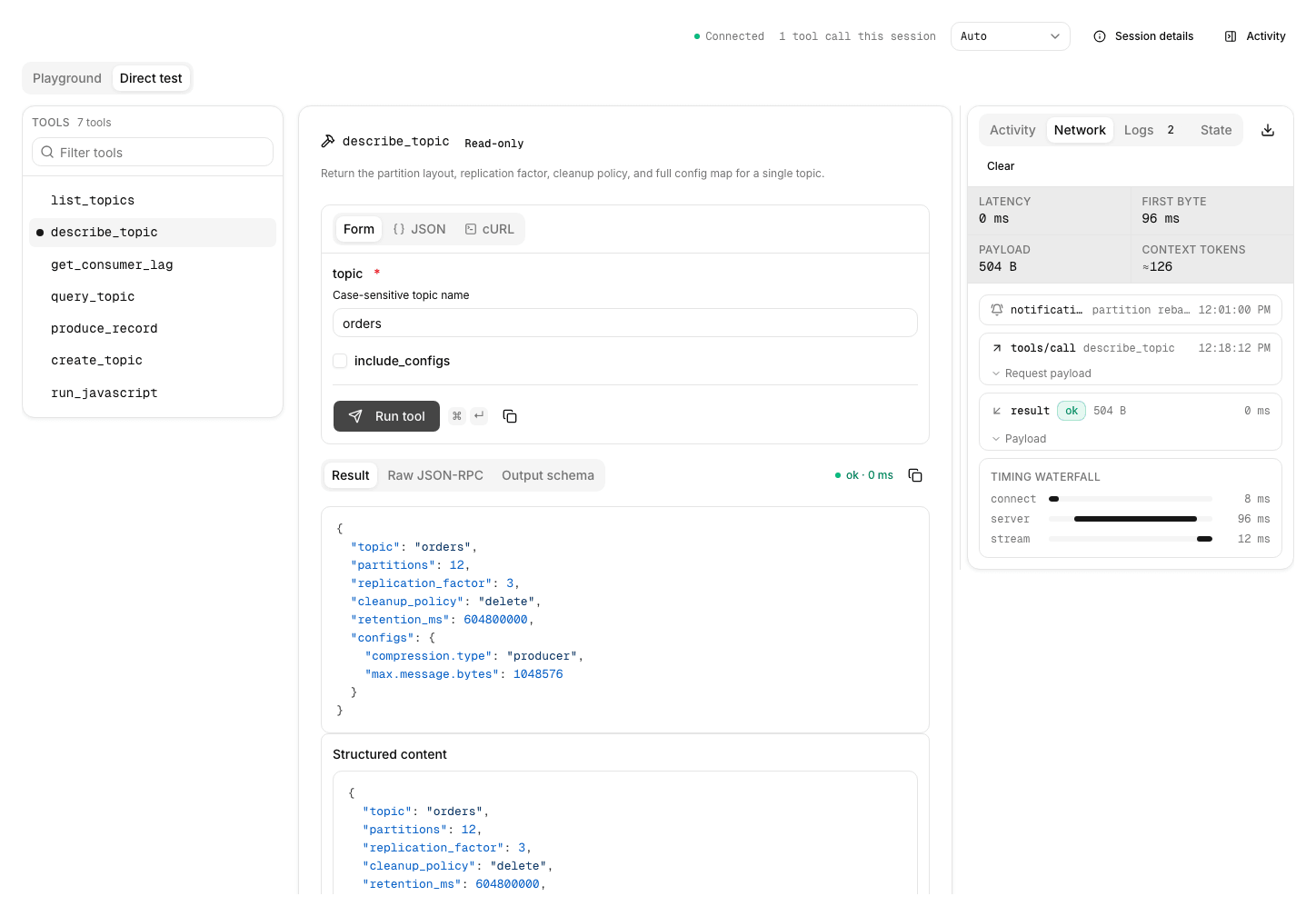
The Inspector is a console: a tool list and a tool runner sit side by side, with a status strip along the top. Resource and prompt panels appear underneath only when the server exposes those capabilities. Two more surfaces open from the status strip: Session details and Activity. See Review session and protocol details for both.
The console offers two working surfaces, selected by tabs. Direct test holds the tool runner, where you call one tool at a time with input you write yourself. Playground hands the server to a model instead. It’s the Inspector’s own Playground, separate from an agent’s. See Test with a model in the Inspector’s Playground.

Run a tool
The runner is the Direct test working surface.
The tool list shows every tool the server returned from tools/list. When a server exposes more than one tool, a filter box narrows the list by tool name, title, or description, and shows a count of how many tools match. Long tool names wrap in full instead of being cut off.
-
Click a tool in the list to load it into the runner. The runner shows the tool’s input and, after you run it, its response.
-
Provide the tool’s input using one of the input modes:
-
Form: A field-by-field form generated from the tool’s input JSON schema.
-
JSON: The raw JSON input, for pasting or editing a whole object at once.
-
cURL: A ready-to-run
curlcommand for the call, with a copy action.
-
-
Click Run tool, or press Ctrl+Enter (Cmd+Enter on macOS). While the call is in flight, a progress bar reflects any progress the server reports, and you can Cancel it.
The response appears in a tabbed result card:
-
Result: The tool’s output. Toggle between Formatted (pretty-printed JSON) and Raw (the exact response text).
-
Raw JSON-RPC: The reconstructed request and response envelopes, with the method and parameters exactly as the server sees them.
-
Output schema: The tool’s declared output schema, shown when the tool provides one.
A status indicator reports whether the call succeeded and how long it took. Copy actions let you copy the input, the output, or the JSON-RPC envelope. If the tool returns an error, the result card shows the structured error detail. See Common errors for what each common error means.
Code-mode tools
If the server has code mode enabled, the AI Gateway also serves a code-mode endpoint, the server URL with a -code suffix, with two tools, search and execute. Code mode does not add tools to the server’s own tool list. To try search and execute, run rpk ai mcp-server tools call <server-name> search --code-mode or connect an MCP client to the code-mode URL. See Code Mode.
Test with a model in the Inspector’s Playground
The runner proves that a tool works when you call it correctly. The Inspector’s Playground tab answers a different question: whether a model picks the right tool, fills its input correctly, and does something sensible with what comes back. It tests this server alone. To test an agent, use the agent’s Playground. To test a model by itself, use the LLM provider’s Playground. Click Direct test to return to the runner. If the console shows only a Direct test tab, the Playground isn’t enabled for your organization.
The Playground runs in your browser. It sends each prompt to a model through AI Gateway, using the LLM providers configured for your environment, and it makes every tool call over the Inspector’s own session to the server. Your browser decides whether each call runs, so the approval policy is the one you pick here, not one the server enforces. The Playground also reports how many of the server’s tools the model can reach, and names the first few.
To test the server with a model:
-
Click the Playground tab.
-
Choose an LLM provider and a model. For a provider that accepts any model ID, type the ID instead of picking one from a list.
-
Choose a permission mode. See Permission modes.
-
Type what you want the model to do with the server, then press Enter or click Send. To write a message over several lines, press Shift+Enter for a newline.
The model’s reply streams into the conversation. Each tool call the model makes appears as a card with the tool’s name, the arguments the model chose, and the risk the Inspector read from the tool’s annotations. A completed reply reports its time to first token, its total time, and, when the provider returns them, its token counts. Click Stop to end a run in progress, Regenerate to run the last prompt again, or New chat to start over. While a run is in progress the composer won’t send, so pressing Enter can’t interrupt the reply. Your conversation, provider, model, and permission mode are kept in your browser for each server, so they survive leaving the tab and coming back. Changing the provider, the model, or the permission mode stops a run in progress.
A tool’s result appears in its own block headed Untrusted tool output, and the Playground tells the model to treat it as data rather than as instructions. The Inspector checks a call’s arguments against the tool’s input schema before running it, and checks the result against the output schema when the tool declares one, so a schema mismatch surfaces as an error instead of as a confusing answer.
A run stops on its own after eight rounds of tool calls. A model request that takes longer than two minutes, or a tool call longer than one minute, times out. Tool calls need the Inspector’s session to the server. When the status strip reports the connection is down, calls fail rather than queue.
Permission modes
The permission mode decides which tool calls run without asking you. The Inspector classifies every tool from the annotations the server declares for it. A tool that declares itself read-only and confined to its own system counts as safe. One that declares a destructive operation counts as destructive, and one that reaches outside its own system counts as external. A tool whose annotations don’t settle the question, including a tool with no annotations at all, counts as unclassified.
| Mode | What runs without asking you |
|---|---|
Manual |
Nothing. Every tool call waits for Approve or Deny. |
Accept edits |
Only tools that declare a read-only operation confined to their own system. Everything else waits. |
Plan |
Nothing. Each call is proposed rather than run, and you click Run proposed or Skip on it. |
Auto |
Tools that declare a non-destructive operation confined to their own system. Destructive, external, and unclassified tools wait. |
Bypass permissions |
Every call. Confirm the change before it takes effect. It applies to this Inspector session only and is never saved. |
Because an unclassified tool waits, Accept edits and Auto ask about a tool whose annotations are missing or incomplete. A server that annotates its tools gets more out of both modes.
Denying a call tells the model that you denied it, and the run carries on with the model’s next call rather than ending.
Inspect resources
When the server exposes resources through resources/list, a Resources panel appears below the runner. Many MCP servers don’t expose resources at all: if there’s no panel, that’s fine.
If your server does expose resources:
-
Click a resource to load its content into the pane.
-
The Inspector renders text, JSON, and binary types differently; for a binary payload, it reports the size and tells you to decode the content with a client SDK.
Inspect prompts
When the server exposes prompt templates through prompts/list, a Prompts panel appears below the runner. Prompt templates are parameterized prompts an agent can invoke by name. As with resources, many servers don’t expose prompts.
If your server does expose prompts:
-
Click a prompt to render its template.
-
Fill in any required parameters in the rendered form.
-
Click Preview messages to see the rendered prompt content.
Review session and protocol details
The status strip along the top of the console reports the connection status and how many tool calls you have made this session, and carries three controls.
The connection status reads Connected, Connecting, or Disconnected while the Inspector holds a session to the server. It reads On demand when the Inspector is not holding an open session. With no session at all, each call opens its own short-lived connection instead.
A selector chooses which MCP protocol edition the Inspector negotiates: Auto, Legacy 2025, or Modern 2026. Leave it on Auto unless you’re checking how the server behaves against an older or a newer client. The Inspector remembers the choice for that server. The selector needs a session, so it’s unavailable when the Inspector holds none.
Session details opens a side panel with the session’s connection health, negotiated capabilities, and protocol edition. Use it to confirm the Inspector connected and to see which capabilities (tools, resources, prompts) the server advertised.
Activity opens a panel beside the runner with four views:
-
Activity: The tool calls, resource reads, prompt previews, and pings from this session, each with its result and how long it took. When a server asks for input in the middle of a call, the request appears here, and you can answer it, decline it, or cancel the call.
-
Network: The JSON-RPC request and result frames for your calls, interleaved with any notifications the server sends. Expand a frame to read its payload. When the gateway reports timing detail, a waterfall splits the most recent call into its connect, server, and stream phases.
-
Logs: Log lines the server sends over MCP logging, newest first, with a count beside the view name.
-
State: What the Inspector knows about the session, as JSON: status, protocol edition and version, server identity, negotiated capabilities, the result of discovery, any pending input requests, and resource subscriptions.
A telemetry strip reports the last call’s latency, time to first byte, payload size, and estimated context tokens. Click Clear to empty every view at once, or the download control to save the session’s activity, frames, and history as a JSON file to attach to a bug report. Values under credential-shaped keys are replaced before the file is written, but that’s a pattern match rather than a guarantee, so read the file before you share it.
Common errors
| Error | Meaning and fix |
|---|---|
|
The user-delegated authentication path has no stored token for the calling user. The failed tool result carries the authorization URL. Complete the consent flow per User-delegated OAuth, then run the tool again. |
|
The stored token is expired and refresh failed. Reconnect through Connections. |
|
The upstream provider rejected the stored credential for your account (for example, with a 401): the connection may have expired, been revoked, or had its access removed. The error message includes an authorize URL; reconnect the provider, then retry the call. |
|
The user’s connection lacks one of the server’s |
Transport / connection error |
The Inspector can’t reach the upstream. The Overview tab and the Inspector tools list show the discovery error. For self-managed servers, verify the URL and transport choice. |
Tool input validation error |
The form’s input doesn’t match the tool’s schema. The error message includes the offending field. Update and re-run. |
Test from the CLI
Use rpk ai for the same tool calls outside the UI, when scripting smoke tests or running checks from CI.
# List every tool exposed by a server
rpk ai mcp-server tools list <server-name>

# Call a tool with a JSON arg blob
rpk ai mcp-server tools call <server-name> <tool-name> --args '{"arg1":"value"}'

# Get server detail, including the discovered tool list
rpk ai mcp-server get <server-name>
The command targets the AI Gateway of your selected Agentic Data Plane environment, using credentials from rpk ai auth login. See Connect your app to AI Gateway for installation and sign-in.
