Monitor and Manage an LLM Provider
From an LLM provider’s detail page, monitor traffic and spend, find out why calls fail, connect an application, test a model, and edit, disable, or delete the provider. To create a provider, see Configure an LLM Provider.
After reading this page, you will be able to:
-
Investigate failed calls and review traffic, spend, and callers on a provider’s Overview tab
-
Connect an application to a provider and test a model in the Playground
-
Change or remove a provider from its Settings tab and the provider list
Prerequisites
-
An LLM provider in your Agentic Data Plane environment. See Configure an LLM Provider.
-
Permission to view providers. Admins have it by default. To edit or delete a provider, other roles need an access policy that grants
LLMProvider.updateorLLMProvider.delete. See LLM provider permissions.
Open the provider detail page
Open LLM providers in the sidebar, then click the provider’s name.
The detail page organizes everything about the provider into tabs: Overview, Connect, Cost and usage, Playground (when enabled for your organization), and Settings. The Cost and usage tab charts this provider’s spend and usage, which Analyze Cost and Usage covers across every provider. The page header carries the provider’s logo, its display name with an Enabled or Disabled badge beside it, its resource identifier, and its description if it has one.
The provider’s model list sits in the Models section of the Settings tab, alongside the rest of the provider’s configuration. A saved link that ends in tab=models opens Settings instead.
Overview
The Overview tab reports over a single time range, which you select with the tab’s range selector. The range covers everything on the tab: the metric cards, the Gateway traffic chart, Who calls what, and the Callers table. It opens on the last seven days, and you can pick a preset or an exact window of your own.
Three metric cards give total spend, requests, and tokens over that range. Each card gives the total, how it changed against the range of the same length immediately before it, a trend line, and a breakdown of the figure by cost type, request outcome, or token type. The token card also reports what share of prompt tokens came from cache. Click View more on a card to open a detail panel for that metric, where you can group and filter the figure.
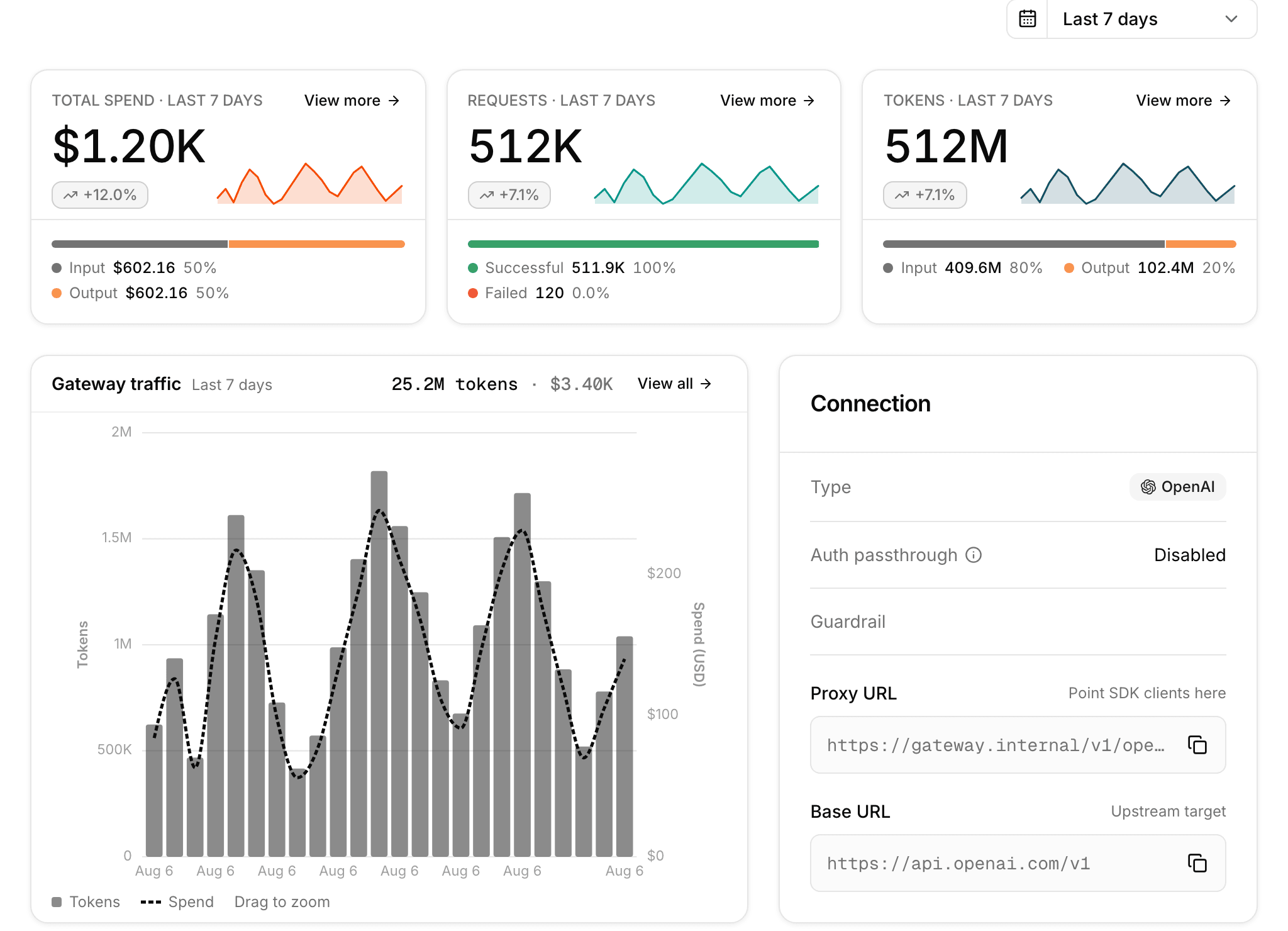
A Gateway traffic chart plots token volume as bars and spend as a line, with the totals for the range in its header. Drag across the chart, or pinch it, to zoom into a narrower window, which then becomes the range for the whole tab. While a window you selected that way is in force, click Reset time range to go back to the last seven days. The reset also clears any preset you picked from the selector. Click View all to open the Cost and usage page with this provider charted against the gateway total over the same range. The Connection card lists the provider type, the authentication passthrough state, and any attached guardrail, then the endpoint values with a copy control each: the proxy URL, the upstream base URL, the API key secret reference, and, for an Amazon Bedrock provider, the region and its credential references.
A Who calls what card then draws the caller-to-model traffic for that range. Hover over a node in that graph to isolate its connections, which the graph’s hint reminds you of on a machine with a mouse.
A Callers table lists, over the same range, each agent or user that called the provider, with its request count, the models it used, its error count, spend, and when it was last seen. Sort the table by requests, errors, spend, or last seen. It opens on the busiest caller first. Search the table by caller name, slug, or email. Select an agent’s row to open the Activity tab of the Cost and usage page for that agent, or a user’s row to open that page with this provider charted against the gateway total. For analysis across providers, see View cost and usage.
Investigate failed calls
When a caller has failed requests in the selected range, Who calls what shows a warning counting the callers that need attention, and says so when some callers aren’t shown. Expand it to see each failing caller with its count of failed requests, then click Inspect to open the details. An affected caller’s node in the graph and a caller’s error count in the Callers table open the same details.
The Failed provider calls panel lists that caller’s failed calls over the range, newest first. Each entry carries a label for what went wrong, such as Rate limited, Authentication failed, Permission denied, Resource not found, Timed out, Provider unavailable, Safety policy blocked, Request too large, Invalid request, Provider internal error, or Provider error, along with when the call started, a summary of the error, the model, and the latency. When the provider reported no specific cause, the summary says so. Click Diagnostics on an entry to see its trace ID, span ID, and response ID, each with a copy control. An entry that recorded none of the three has no Diagnostics control. Click Load more to page through a longer list. The panel reports what the gateway recorded about the call itself, not the prompt or the model’s output.
Each entry offers the next steps that fit its failure:
-
Open transcript opens the conversation for a call an agent made.
-
Review usage breaks down what hit the rate limit, and Manage budgets opens the budgets page.
-
Review models opens the model list for a model the provider no longer serves.
-
Review connection opens the credential and endpoint settings behind an authentication or permission failure.
-
A link to the upstream provider’s own status page appears when that provider timed out, was unavailable, or reported an internal error.
-
Review guardrail appears for a call the safety policy blocked, on a provider with an attached guardrail.
-
Review provider settings appears for a provider error, an invalid or oversized request, or a provider outage when neither Test in Playground nor a status page link is offered, and for a safety policy block on a provider with no attached guardrail.
-
Test in Playground appears when the Playground is enabled for your organization.
Connect
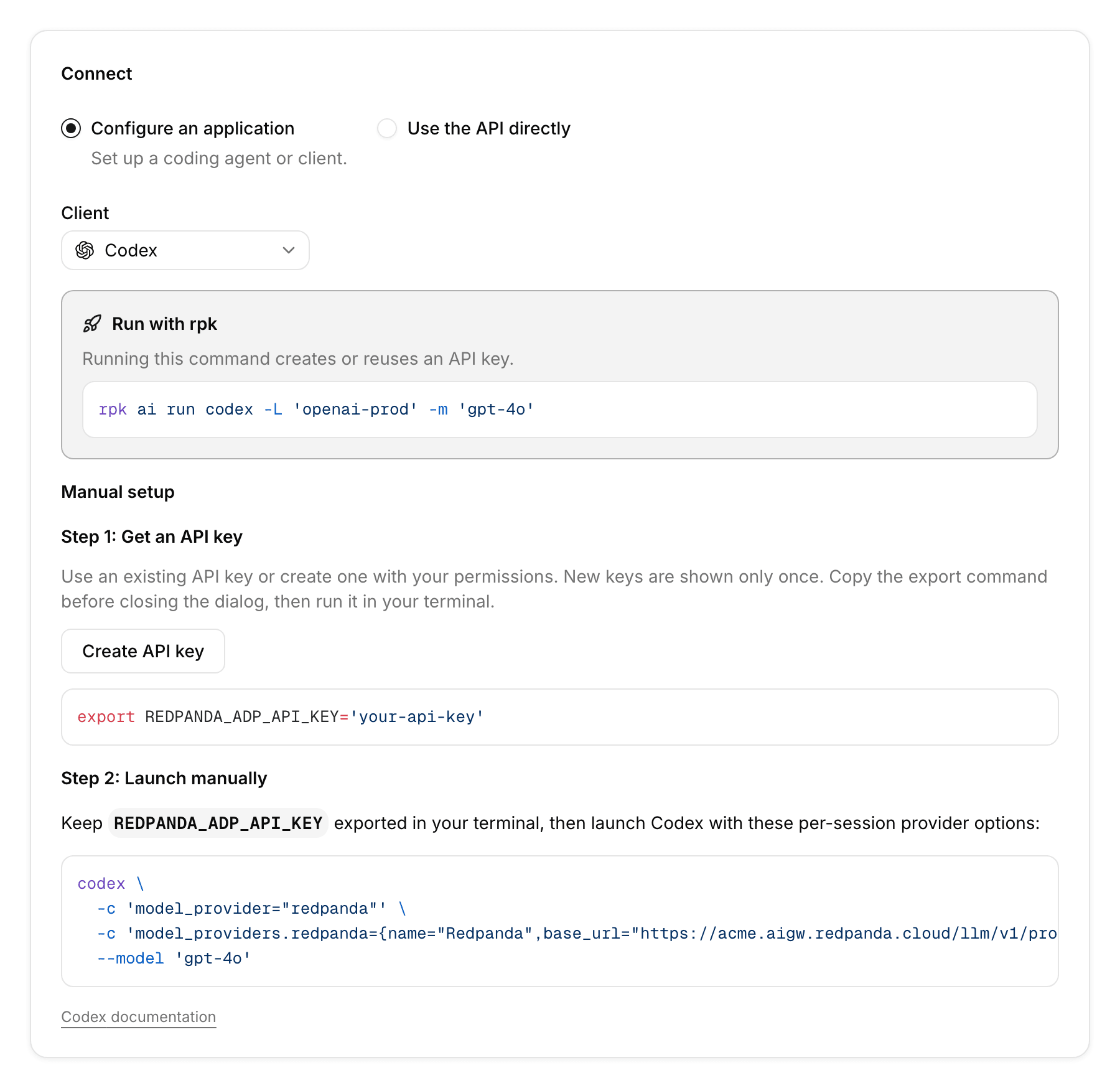
The Connect tab generates ready-made configuration for this provider, with the provider’s proxy URL already filled in. It offers two paths:
-
Configure an application: Select a client and follow its guide. Where an
rpk ai runcommand can launch the client, the guide leads with that command, which creates or reuses an API key for you. The manual setup that follows starts with an API key step and then configures the client. -
Use the API directly: Choose HTTP and provider SDKs for curl, Python, TypeScript, Go, and Java examples, or Agent SDKs for agent framework recipes, then pick a model. Each example starts with an API key step, and you can download it as a small project.
For a Bedrock provider, the Claude Code guide runs against the gateway without local AWS credentials, because the gateway signs the upstream AWS requests for you, and the HTTP example uses the Bedrock Converse API. For a Gemini Enterprise Agent Platform provider, the Claude Code guide needs a Claude model that the provider allows. See Run Claude Code for that path. See Connect your app to AI Gateway for the underlying flow.
rpk ai run command and the manual setup steps for a clientWhich client guides appear depends on the provider type and on the models the provider allows:
| Provider type | Client guides |
|---|---|
OpenAI |
Codex, OpenCode, Cline, Cursor |
OpenAI-compatible |
Cline, Cursor, OpenCode |
Anthropic |
Claude Code, Cline, OpenCode (only Claude Code when authorization passthrough is on) |
Google Gemini API |
Antigravity CLI, Cline, OpenCode |
Gemini Enterprise Agent Platform |
Claude Code for a Claude model, and Antigravity CLI and OpenCode for a Gemini model |
Amazon Bedrock |
Claude Code, when the provider allows a Claude model |
Fireworks |
Claude Code, when the provider allows a model served on the Anthropic Messages API, and Codex, when it allows a model served on the OpenAI Responses API |
On an Amazon Bedrock, Gemini Enterprise Agent Platform, Google Gemini API, or Fireworks provider, the tab loads model metadata before it offers a client guide. If the tab can’t load the model catalog, it reports Model catalog unavailable with Try again, which reloads every model at once. On a Google Gemini API provider, the generic client guides stay available while the catalog is unavailable, and only the Antigravity CLI guide waits for the metadata. A configured model that the catalog doesn’t list appears without metadata, and the tab doesn’t flag it. The code examples and agent framework recipes under Use the API directly report the same state.
On a Fireworks provider, the tab offers a guide only for a client that one of the provider’s models can serve, and it reports No CLI integration for this provider yet when none can. When a configured model qualifies, each guide leads with the rpk ai run command and names the minimum client version and the provider read access that the command needs. The manual Claude Code setup starts a session that excludes your user and project settings and sends main and background requests to the same model. Claude Code might warn that it doesn’t recognize the model identifier. The manual Codex setup passes the provider to Codex as per-session options. Under Use the API directly, select a Request format of Messages, Chat Completions, or Responses to get the matching curl, Python, TypeScript, Go, and Java examples. The tab doesn’t offer Agent SDK recipes for a Fireworks provider. Use the HTTP and provider SDK examples instead.
With authorization passthrough on, each client sends its own upstream credential in the Authorization header and its API key in the X-Redpanda-Api-Key header. These are separate credentials. The API key authenticates to AI Gateway, not to your upstream account. The tab adjusts its guides to match:
-
On an OpenAI or OpenAI-compatible provider whose base URL is the Codex endpoint, Configure an application shows a passthrough guide with a Codex launch command that keeps your ChatGPT sign-in from
codex loginand reads your API key from theREDPANDA_ADP_API_KEYenvironment variable. Use that manual setup rather thanrpk ai run codex. This provider has no direct code examples. -
On any other OpenAI or OpenAI-compatible passthrough provider, no client guide can carry both credentials, so the tab points you to the HTTP and provider SDK examples instead.
-
Agent SDK recipes aren’t offered for any passthrough provider.
View cost and usage
The Cost and usage page reports spend, requests, and tokens for a time window against the period before it, breaks spend down by agent, model, provider, user, or tag, charts any one of them against the gateway total, and exports CSV. See Analyze Cost and Usage.
Playground
When the Playground tab is available, use it to test one of the provider’s models before you connect application code. Choose a model, send a prompt, and optionally adjust response controls such as reasoning effort and maximum output tokens. The response streams into the conversation while the Playground shows the request, response events, status, and timing.
Your browser saves Playground conversations, separately for each signed-in user, organization, and environment, so switching organization or environment opens a different set. Signing out deletes every saved Playground conversation from that browser. AI Gateway still proxies each Playground request, so the provider’s Transcripts settings decide whether it records the prompts and responses (see Configure message recording). If the Playground can’t match the saved conversations to your sign-in and environment, it reports Playground session unavailable and offers Try again.
On a Gemini Enterprise Agent Platform provider, the Playground can send requests to Google and Anthropic models. It tells them apart by the publisher the model catalog records for each one. It refuses a model from any other publisher, or one the catalog has no entry for. In that case it explains why and offers no cURL command. To set up the provider, see Set up Gemini Enterprise Agent Platform as an LLM provider.
On a Fireworks provider, the Playground sends each request on the API the catalog lists first for the model. It offers only the controls the catalog declares for that model, such as reasoning effort levels and a maximum output length within the model’s limit. It also rejects an image sent to a model that doesn’t accept images. If the catalog has no details for the model, the Playground says so and asks you to reload the page.

Settings
The Settings tab is where you edit the provider after you create it. It is organized into sections:
-
General: Edit the display name. The provider type and resource ID are fixed after creation and shown read-only.
-
Credential: Change how the gateway authenticates to the upstream provider. To rotate a stored key’s value for every provider that uses it, follow the link to Provider keys in the Secret Store.
-
Connection: The read-only proxy URL, the editable upstream base URL, and Test connection, which checks the saved provider against the upstream service. Save or discard any unsaved changes first, because the check tests the saved configuration. On a Fireworks provider, the fixed endpoint leaves no base URL field, and Test connection appears in the Models section with the models that the check tests.
-
Models: Choose which models this provider exposes to agents and developers. The list works the same way as on the create form (see Select models). Select a model’s checkbox to enable it, or clear the checkbox to stop serving it.
-
Transcripts: Turn message-body recording on or off (see Configure message recording).
-
Tags: Add or remove the provider’s key/value tags (see Tag the provider).
AI Gateway rejects a request for a model that isn’t enabled on the provider with HTTP 403 and the error type model_not_allowed. This applies to every provider type.
On an Amazon Bedrock or Fireworks provider, disabling a model also affects agents. Agentic Data Plane rejects an agent that references a disabled model, at agent creation or when the model reference changes. Agents that already reference a model you disable stay saveable until someone edits their model. See Create an Agent.
When you change a field, a save bar appears with Save changes and Discard. An enable/disable control on the tab stops or resumes routing without deleting anything, and a Delete this provider danger zone permanently removes the provider after you confirm.
View a model’s detail page
Each model enabled on a provider has a detail page, which gathers what the catalog knows about that model on this provider in one place. The provider’s model list doesn’t link to it, so open it by URL: https://ai.redpanda.com/llm-providers/<provider-name>/models/<model-id>, where <provider-name> is the provider’s resource name and <model-id> is a model enabled on it. The page shows:
-
An overview strip with the model’s context window (largest input it accepts), maximum output (most it can generate in a single response), and price (input and output rates per million tokens). Each value appears only when the catalog declares it.
-
Model details: The model ID and the provider’s proxy URL, each with a copy control.
-
Pricing: A read-only rate card of the model’s effective per-bucket rates, that is, the catalog rates with any per-model overrides applied (see Override per-model pricing). This section appears only when rates are known, and links to the upstream provider’s pricing reference.
-
Capabilities: The model’s capabilities from the catalog, with a link to the upstream provider’s capabilities reference. This section appears only when the catalog declares capabilities.
-
Usage: Spend, Requests, and Tokens cards for traffic routed to this model through this provider over the last seven days. Click View more on a card to open a metric detail drawer.
Browse providers in the list view
The LLM providers list page is the at-a-glance home for every provider in your Agentic Data Plane environment. Open it from the sidebar’s LLM providers entry.
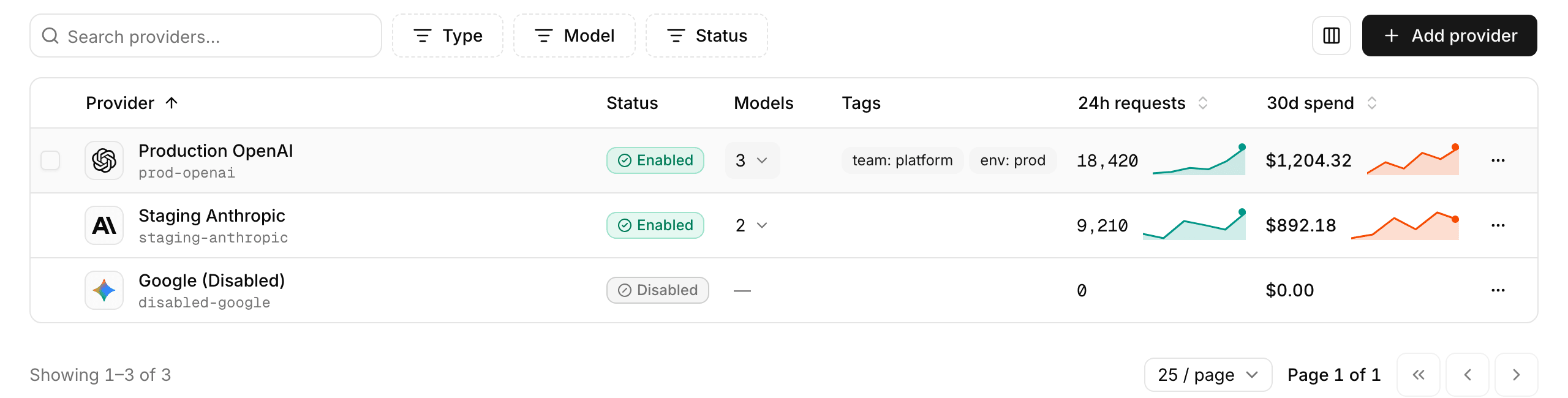
| Column | What it shows |
|---|---|
|
The provider-type icon (OpenAI, Anthropic, Google Gemini API, Gemini Enterprise Agent Platform, Amazon Bedrock, Fireworks, or OpenAI-compatible), the display name, and the resource identifier. Click the provider name to open its detail page. |
|
|
|
How many models are configured on the provider. Select the count to read the full list. A provider with no models configured shows a dash. |
|
The provider’s tags, as badges. An untagged provider shows nothing, and a narrow window hides this column first. |
|
Request count over the last 24 hours. |
|
Spend over the last 30 days. For longer-range or cross-provider analysis, use the Cost and usage page (see View cost and usage). |
Click the 24h requests or 30d spend column header to order the list by that figure. A metric sort replaces any other column’s sort. Use the search box to find a provider by name, and the Filter button to narrow the list by provider type, model, or status. The Add provider button opens the create flow described in Open the Create LLM provider page. Each row’s actions menu can enable or disable the provider, copy its proxy URL, or delete it, and offers to copy the upstream base URL for an OpenAI or OpenAI-compatible provider. Disabling asks you to confirm, and deleting asks you to type the provider’s display name. The list paginates, with a rows-per-page selector in the footer.
Edit, disable, or delete a provider
-
Edit: Open the Settings tab and change any field except the provider type and resource ID, which are immutable after creation. The display name, credential reference, base URL, and model list can all change. When you edit a field, a save bar appears. Click Save changes to apply your edits.
-
Disable: On the Settings tab, click Disable provider and confirm. The provider remains in the list, but requests to its proxy URL are rejected until you enable it again. Use this when you want to pause traffic without losing configuration.
-
Delete: On the Settings tab, go to the Delete this provider section, click Delete provider, and type
deleteto confirm. Deletion is permanent, and requests to the provider’s proxy URL fail until you point clients at another provider.
