Redpanda Connect Quickstart
In this quickstart, you build data pipelines to generate, transform, and handle streaming data end-to-end. You create two pipelines: one that generates dad jokes and writes them to a topic in your cluster, and another that reads those jokes and gives each one a random "cringe rating".
After completing this quickstart, you will be able to:
-
Build a producer pipeline that generates and publishes data to a topic
-
Build a consumer pipeline that reads, transforms, and logs data from a topic
Prerequisites
You must have a Redpanda Cloud account with a Serverless, Dedicated, or standard BYOC cluster. If you don’t already have an account, sign up for a free trial.
| Clusters can create up to 100 pipelines. For additional pipelines, contact Redpanda support. |
Quickstart pipelines
This quickstart creates the following pipelines:
-
The first pipeline produces dad jokes and writes them to a topic in your cluster.
-
The second pipeline consumes those dad jokes and gives each one a random "cringe rating" from 1-10.
The producer pipeline uses the following Redpanda Connect components:
| Component type | Component | Purpose |
|---|---|---|
Input |
Creates jokes |
|
Output |
Writes messages to your topic |
|
Processor |
Logs generated messages |
|
Processor |
Catches errors |
The consumer pipeline uses the following Redpanda Connect components:
| Component type | Component | Purpose |
|---|---|---|
Input |
Reads messages from your topic |
|
Output |
Drops the processed messages |
|
Processor |
Processes ratings |
|
Processor |
Logs processed messages |
|
Processor |
Catches errors |
Explore the Visual editor
When you create or edit a pipeline, the editor has two tabs: YAML and Visual. When you open an existing pipeline, a Monitor tab appears alongside them, and the Visual tab is read-only. Click Edit pipeline to make changes.
-
The YAML tab gives you an IDE-like experience: after you add a component, click its leaf icon in the left sidebar to open that component’s reference documentation, or use the slash command menu to insert secrets and other variables.
-
The Visual tab renders your pipeline as an interactive node diagram, so you can inspect and edit inputs, processors, outputs, and control-flow constructs (such as
switch,branch, andtry/catch) without hand-writing YAML.
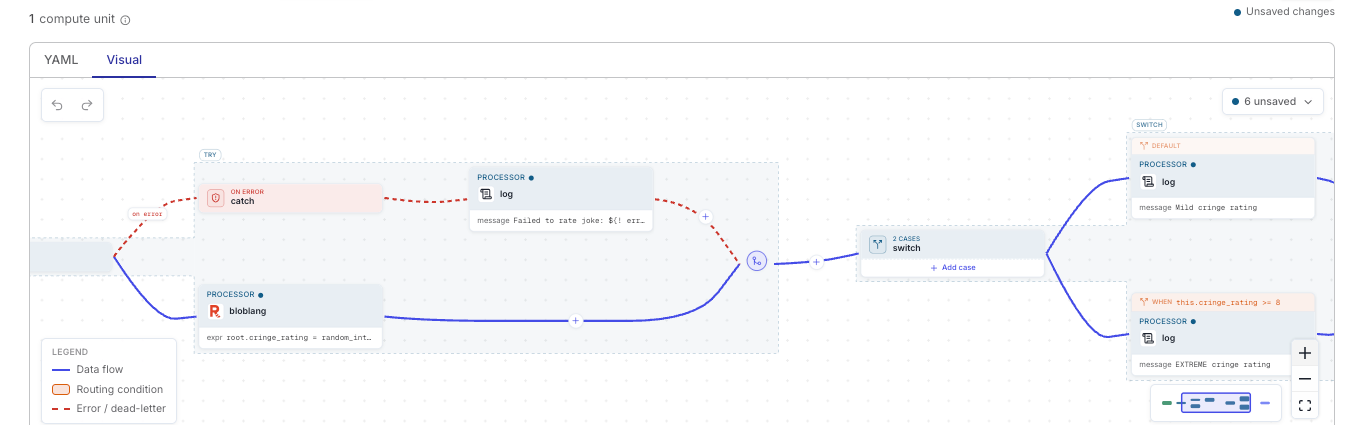
Both tabs stay in sync, so you can switch between them at any time. A switch groups its cases into a single box, with each case labeled by its routing condition. A try groups the processors it protects into its own box, and a catch that follows it is connected with a dashed line labeled ON ERROR, so the error path is visually distinct from the main data flow:
This quickstart uses the YAML tab, so click YAML if the editor opens on the Visual tab.
Build a producer pipeline
Every pipeline requires an input and an output in a configuration file. You can select components in the left sidebar and customize the YAML in the editor.
To create the producer pipeline:
-
Go to the Connect page for your cluster and click Create a pipeline.
-
Enter this name for the pipeline:
joke-generator-producer. -
In the left sidebar, click Add input and search for and select the
generateinput connector. The YAML for this connector appears in the editor. -
Click Add output and search for and select the
redpandaoutput connector. The YAML for this connector also appears in the editor. -
The
redpandaconnector requires a Redpanda topic and user:-
In the left sidebar, click Topics +, then click Create topic. Enter
dad-jokesfor the topic name and click Create. -
In the left sidebar, click Users +, then click Create user. Enter
connectfor the username and click Create.
-
-
Replace the generated YAML in the editor with the following. This configuration includes the
logandcatchprocessors and themappingfor joke generation. Bloblang is Redpanda Connect’s scripting language used to add logic.input: generate: interval: 5s count: 0 mapping: | let jokes = [ "Why don't scientists trust atoms? Because they make up everything!", "I'm reading a book about anti-gravity. It's impossible to put down!", "Why did the scarecrow win an award? He was outstanding in his field!", "What do you call a fake noodle? An impasta!", "Why don't eggs tell jokes? They'd crack each other up!", "I used to play piano by ear, but now I use my hands.", "What do you call a bear with no teeth? A gummy bear!", "Why did the bicycle fall over? It was two tired!", "What do you call a fish wearing a crown? A king fish!", "Why don't skeletons fight each other? They don't have the guts!", "What do you call cheese that isn't yours? Nacho cheese!", "Why can't you hear a pterodactyl using the bathroom? Because the 'p' is silent!", "What did the ocean say to the beach? Nothing, it just waved!", "Why did the math book look sad? It had too many problems!", "What do you call a sleeping bull? A bulldozer!", "How do you organize a space party? You planet!", "What's orange and sounds like a parrot? A carrot!", "Why did the coffee file a police report? It got mugged!", "What do you call a can opener that doesn't work? A can't opener!", "Why don't oysters donate to charity? Because they're shellfish!" ] let joke_index = random_int() % $jokes.length() root.joke = $jokes.index($joke_index) root.id = uuid_v4() root.timestamp = now() root.source = "dad-joke-generator" root.joke_length = root.joke.length() pipeline: processors: - log: level: INFO message: "📝 Generating joke: ${! json(\"joke\") }" - catch: - log: level: ERROR message: "❌ Error generating joke: ${! error() }" output: redpanda: seed_brokers: # Required in Redpanda Cloud - ${REDPANDA_BROKERS} tls: enabled: true # Optional (default: false) client_certs: [] sasl: - mechanism: SCRAM-SHA-256 username: ${secrets.KAFKA_USER_CONNECT} password: ${secrets.KAFKA_PASSWORD_CONNECT} topic: dad-jokes # Optional-
Notice the
${REDPANDA_BROKERS}contextual variable in the configuration. This references your cluster’s bootstrap server address, so you can use it in any pipeline without hardcoding connection details. Use the slash command menu in the YAML editor or use the command palette to insert the Redpanda broker’s contextual variable. -
Notice
${secrets.KAFKA_USER_CONNECT}and${secrets.KAFKA_PASSWORD_CONNECT}. These reference secrets that you can create using the slash command menu in the YAML editor or on the Security page. -
The Brave browser does not fully support code snippets.
-
-
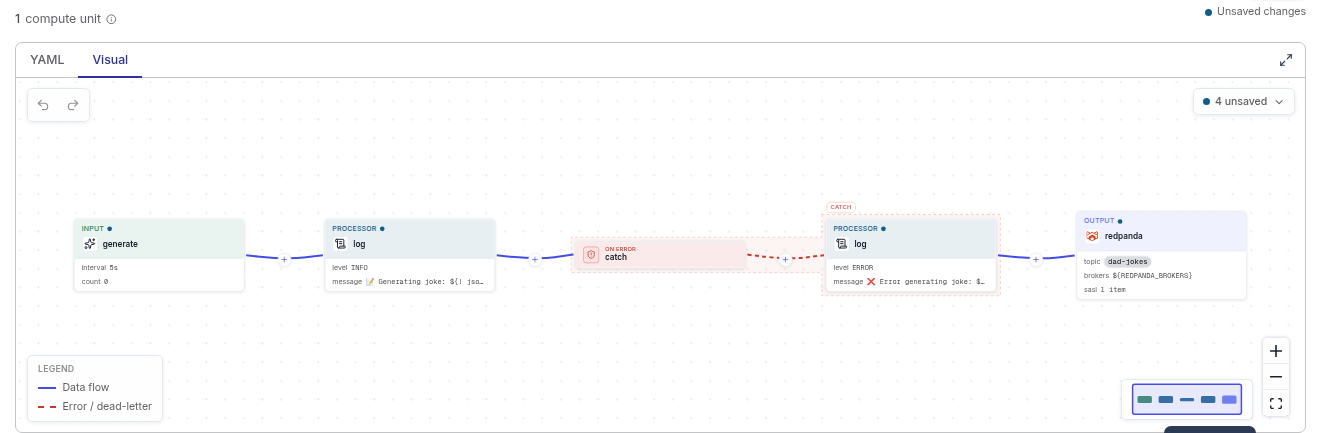
Click the Visual tab (next to YAML) to see this pipeline as a diagram.
-
Click Save.
Your pipeline details display, and after a few seconds, the pipeline starts running. The pipeline generates jokes and writes the jokes to your Redpanda topic.
Review the pipeline logs
The page loads new log messages as they come in. When Live mode is disabled, you can filter logs, for example, by level, message content, or path. The log shows activity from the past five hours.
Click through the log messages to see the startup sequence. For example, you’ll see when the output becomes active:
{
  "instance_id": "d73c39bp7l8c73d7lll0",
  "label": "",
  "level": "INFO",
  "message": "Output type redpanda is now active",
  "path": "root.output",
  "pipeline_id": "d73a55ptub9s73agpthg",
  "time": "2026-03-27T17:43:02.36416142Z"
}
View the processed messages
-
Go to the Topics page for your cluster and select the
dad-jokestopic. -
Click any message to see the structure. For example:
{
    "id": "d242c355-4cee-4382-817a-190c7a115a19",
    "joke": "I used to play piano by ear, but now I use my hands.",
    "joke_length": 52,
    "source": "dad-joke-generator",
    "timestamp": "2026-03-27T15:30:38.963227997Z"
}
Build a consumer pipeline
This next pipeline rates the jokes that you generated in the first pipeline. To create the consumer pipeline:
-
Go back to the Connect page for your cluster, and click Create a pipeline.
-
Enter this name for the pipeline:
joke-generator-consumer. -
In the left sidebar, click Add input, and search for and select the
redpandainput connector. -
The
redpandaconnector requires a Redpanda topic and user:-
In the left sidebar, click Topics + and select the existing topic
dad-jokes. -
In the left sidebar, click Users + and select the existing user
connect. -
Grant the
connectuser access to thedad-joke-ratersconsumer group: go to the Security page for your cluster, select the Permissions tab, and click Create ACL. Set Principal toconnect, Resource Type to Consumer Group, and Resource Name todad-joke-raters. Set Operation to Read and Permission to Allow, then click Add ACL. Repeat with Operation set to Describe to also grant that permission.
-
-
Click Add output, and search for and select the
dropoutput connector. (For testing purposes, this output drops messages instead of forwarding them. In a real scenario you would replace thedropconnector with your real destination.) -
Replace the generated YAML in the editor with the following configuration, which includes the
bloblang,log, andcatchprocessors.This example explicitly includes several optional configuration fields for the redpandainput. They’re shown here for demonstration purposes, so you can see a range of available settings.input: redpanda: seed_brokers: # Required in Redpanda Cloud - ${REDPANDA_BROKERS} client_id: benthos # Optional (default: "benthos") tls: enabled: true # Optional (default: false) client_certs: [] sasl: - mechanism: SCRAM-SHA-256 username: ${secrets.KAFKA_USER_CONNECT} password: ${secrets.KAFKA_PASSWORD_CONNECT} metadata_max_age: 5m # Optional (default: "5m") request_timeout_overhead: 10s # Optional (default: "10s") conn_idle_timeout: 20s # Optional (default: "20s") topics: # Required (mutually exclusive with regexp_topics) - dad-jokes regexp_topics: false # Optional (default: false). Mutually exclusive with topics. rebalance_timeout: 45s # Optional (default: "45s") session_timeout: 1m # Optional (default: "1m") heartbeat_interval: 3s # Optional (default: "3s") start_from_oldest: true # Optional (default: true) start_offset: earliest # Optional (default: "earliest") fetch_max_bytes: 50MiB # Optional (default: "50MiB") fetch_max_wait: 5s # Optional (default: "5s") fetch_min_bytes: 1B # Optional (default: "1B") fetch_max_partition_bytes: 1MiB # Optional (default: "1MiB") transaction_isolation_level: read_uncommitted # Optional (default: "read_uncommitted") consumer_group: dad-joke-raters # Optional commit_period: 5s # Optional (default: "5s") partition_buffer_bytes: 1MB # Optional (default: "1MB") topic_lag_refresh_period: 5s # Optional (default: "5s") max_yield_batch_bytes: 32KB # Optional (default: "32KB") auto_replay_nacks: true # Optional (default: true) pipeline: processors: - bloblang: | root = this let rating = random_int(min: 1, max: 11) root.cringe_rating = $rating root.cringe_level = if $rating <= 3 { "Mild - Almost acceptable" } else if $rating <= 6 { "Medium - Classic dad joke territory" } else if $rating <= 8 { "High - Eye-roll inducing" } else { "EXTREME - Peak dad joke achievement" } root.processed_at = now() root.rating_emoji = match { $rating <= 3 => "😐", $rating <= 6 => "😬", $rating <= 8 => "🤦", _ => "💀" } let age_seconds = (timestamp_unix() - this.timestamp.ts_parse("2006-01-02T15:04:05Z07:00").ts_unix()) root.age_seconds = $age_seconds - log: level: INFO message: | 🎭 JOKE RATED! ${! json("rating_emoji") } Joke: "${! json("joke") }" Cringe Rating: ${! json("cringe_rating") }/10 - ${! json("cringe_level") } Age: ${! json("age_seconds") } seconds old Processed at: ${! json("processed_at") } - catch: - log: level: ERROR message: "❌ Failed to process joke: ${! error() }" output: drop: {} -
Click Save to start your pipeline.
-
Your pipeline details display, and after a few seconds, the pipeline starts running. Check the logs to see a rated joke. For example:
{
    "custom_source": "true",
    "instance_id": "d454dkn4u2is73ava480",
    "label": "",
    "level": "INFO",
    "message": "🎭 JOKE RATED! 💀\nJoke: \"I used to play piano by ear, but now I use my hands.\"\nCringe Rating: 9/10 - EXTREME - Peak dad joke achievement\nAge: 659 seconds old\nProcessed at: 2026-03-27T17:54:13.340229297Z\n",
    "path": "root.pipeline.processors.1",
    "pipeline_id": "d454djahlips73dmcll0",
    "time": "2026-03-27T17:54:13.341137527Z"
}
Enable egress for pipelines on BYOC and Dedicated clusters
The consumer pipeline in this quickstart drops messages instead of writing them to a real destination. When you replace the drop output with a connector that writes to your own systems, pipelines on BYOC and Dedicated clusters may need additional egress access.
On BYOC and Dedicated clusters, pipelines run inside the Redpanda data plane VPC. By default, pipelines can connect to your Redpanda cluster and to publicly routable endpoints. Outbound connections to other destinations, such as a database with a private address in a peered VPC, are blocked.
To allow pipelines to reach these destinations, add an egress allowlist to your cluster using the Redpanda Terraform provider (version >= 2.1.1). The redpanda_connect.allowed_destination_cidr_ports attribute on the redpanda_cluster resource accepts up to 16 rules, each allowing egress to a destination CIDR block on a port or port range:
resource "redpanda_cluster" "example" {
  # ... other cluster arguments ...

  redpanda_connect = {
    allowed_destination_cidr_ports = [
      {
        cidr       = "10.62.0.0/16" # CIDR of the VPC that hosts your database
        port_start = 5432           # PostgreSQL
      }
    ]
  }
}
The allowlist permits outbound traffic from pipelines, but it does not create a network path to the destination. For private destinations, you must also establish routing, for example by peering the Redpanda data plane VPC with the VPC that hosts your database.
To set the allowlist with the Cloud API, and for the full rule reference and troubleshooting guidance, see Configure Egress for Redpanda Connect Pipelines. For a pipeline example that writes to a private PostgreSQL database, see Enable egress to custom destinations.
Clean up
When you’ve finished experimenting with your data pipeline, you can delete the pipelines and the topic you created for this quickstart.
-
On the Connect page, click the … icon next to the
joke-generator-producerpipeline and select Delete. Repeat for thejoke-generator-consumerpipeline. -
Confirm your deletion to remove the pipelines and associated logs.
-
On the Topics page, delete the
dad-jokestopic.
